
Jailbreak your TV for media freedom
The media streaming tutorial for people on a budget, including my family
Yes, that photo is AI generated. But anyway, it's time we talk about piracy again.
My previous post on this topic got 18,000+ views. That's...shocking. Because, to me, I didn't realize so many people actually enjoyed arr stacks, self-hosting, piracy, and all the other stuff.
However, I was reached out to a few times, with people saying stuff like:
- It's too expensive (even though I said my bulletproof setup is only optional)
- It's too overwhelming (even though I never said it's easy, just that it's possible)
- It's too technical (even though I provided a walkthrough guide and suggested alternatives)
But that's all okay! I'm a pretty patient dude. So today, we're going to talk about a simpler, more affordable solution that is arguably just as good, if not better for most people. Including my momma (but more on that later).
Meet the cheap streaming solution
For a one-time payment of around $29.99, you can get access to pretty much any piece of media at any time. You've probably heard of my nyumatflix.com project, right? Well, this is basically the same thing, but, no-ads, no website, and no worrying about whether the aggregator has the content you want.
Additionally, since we're "jailbreaking" the device, we'll be able to sideload apps from the internet, allowing us to use some awesome applications that are otherwise not available on the device. One of these apps, SmartTube, is a third-party YouTube client that has built-in SponsorBlock and AdBlock, which makes watching YouTube videos a lot more bearable.
Breaking it into two parts
To understand how this works, we need to break it into two parts. The first part is the device needed to run the entire software suite and connect directly to both the internet and your TV. The second part is covering specifically the "magic bullet" to make it not only safer, but more reliable and efficient.
Part 1: The Onn 4k Plus Box
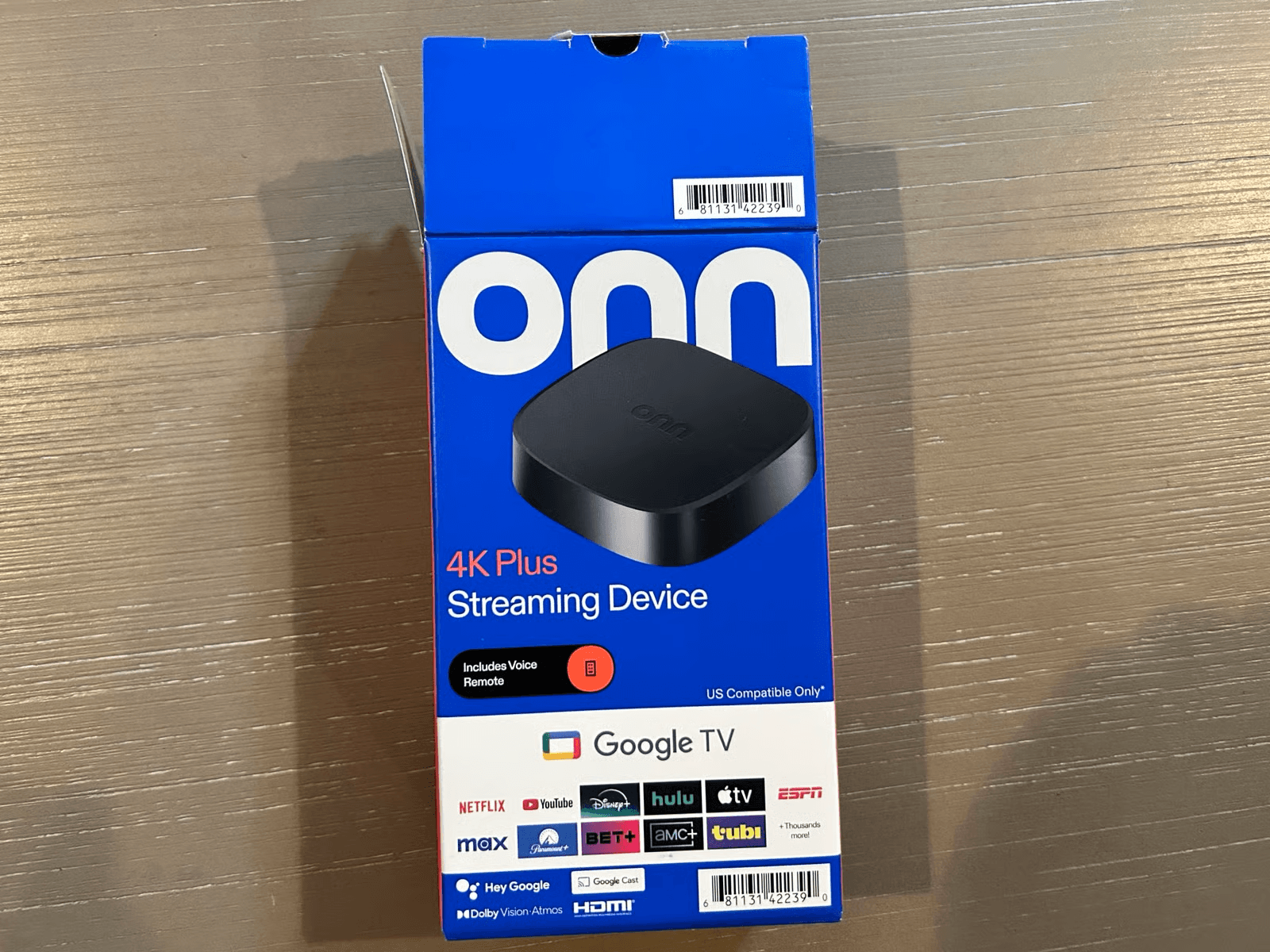
Released in May 2025, the new Onn 4k Plus Box is the hottest device on the market right now that can be used to stream media.
Running Android TV OS v14, this means that we can install third-party apps, get a bunch of customization options (unlike AppleTV), and all the stuff you'd expect from a smart TV, but in a small box. You can find it at your local Walmart for ~$29.
Due to the recent Amazon Fire TV controversy, you might not be able to find the Onn 4k Plus Box at your local Walmart because people are migrating to Onn / Nvidia Shield TV boxes. However, you can still find it at other retailers like Best Buy, Target, and Amazon!
Setup
Alright, now you've got your box. Let's get it connected to your TV.
First thing you'll need to do is connect it to a power supply. Once you do that, you'll need an HDMI cable to connect it to your TV. Upon doing so, you'll be prompted to set your language, connect to your wifi, and set up your local account.
You must have a Google account so that you can install apps; specifically this first application we'll be installing (Downloader by AFTV News) from the Google Play Store. There are workarounds, but for this first step, it's essential.
Before we continue, make sure that your device is updated with the latest software. To check for system updates, go to Settings -> About -> System Update.
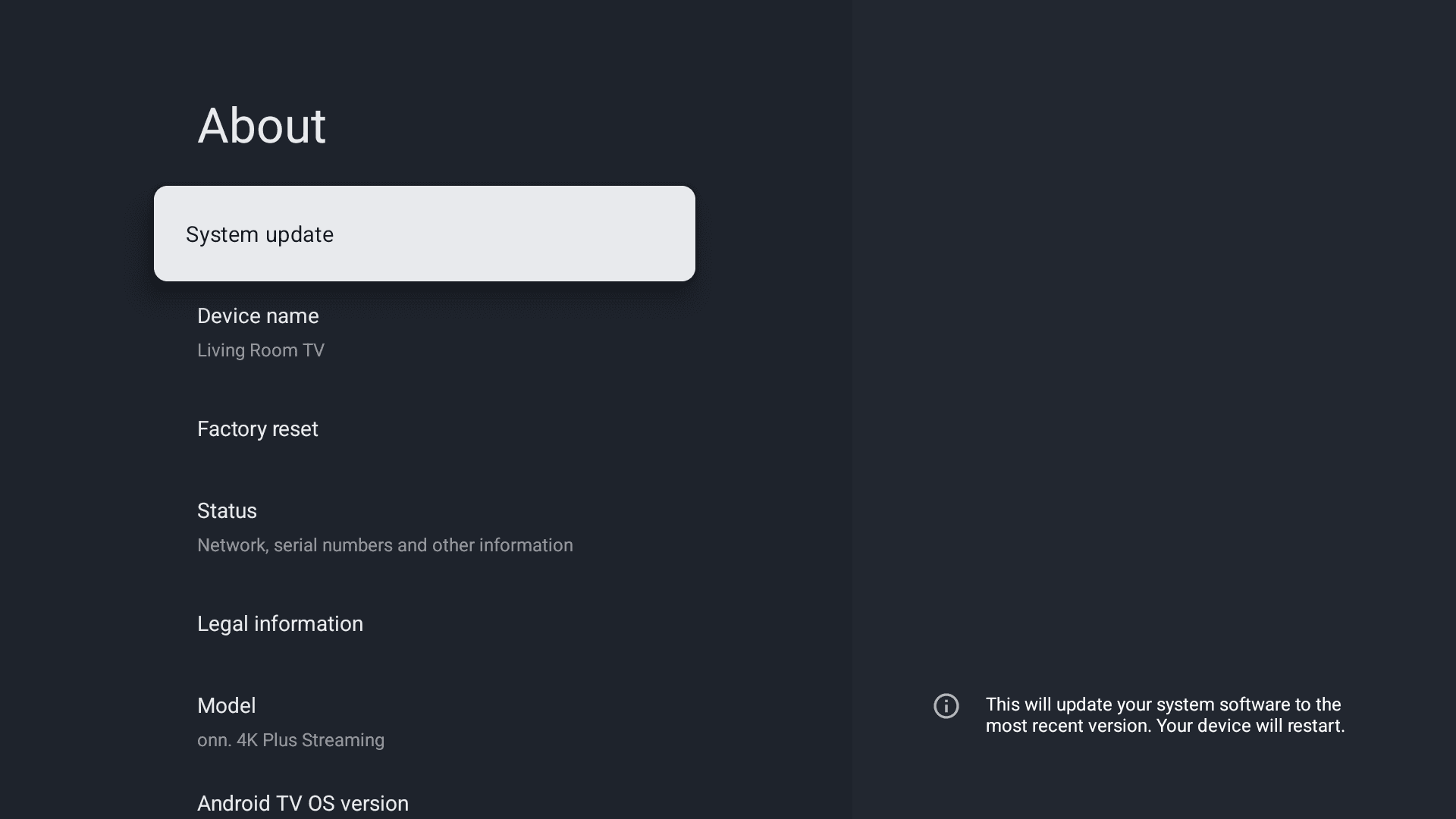
The update process will take a few minutes, so be patient. Once it's done, you'll be prompted to restart the device. Do so, and you'll be good to go.
One thing I like to do is connect my phone to the Google TV Remote app to control the device from my phone.
To do this,
- Download the Google TV App on your smartphone.
- Open the app, and click on the "TVs Nearby" button.
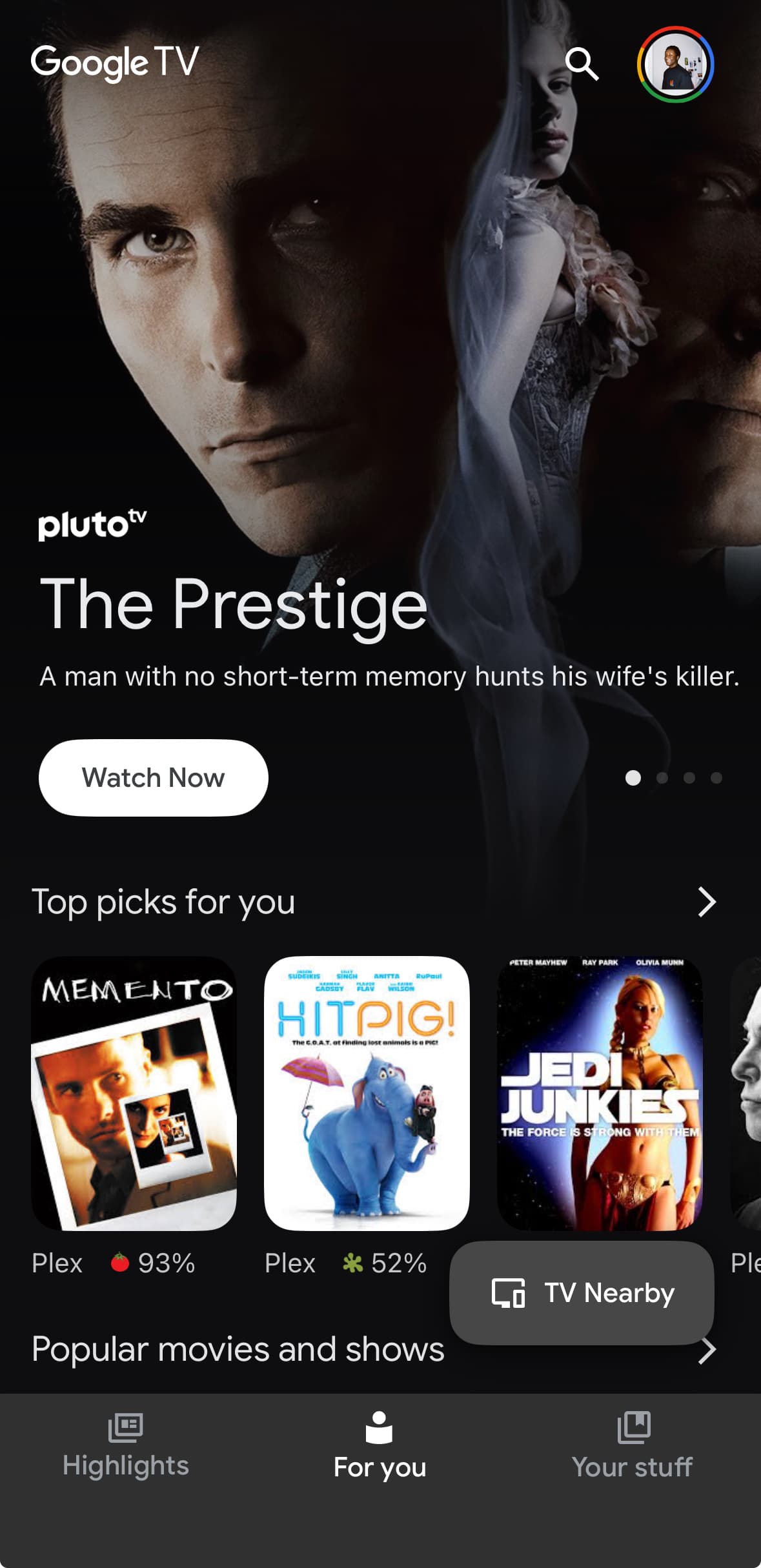
- Select your device from the list, and click on it.
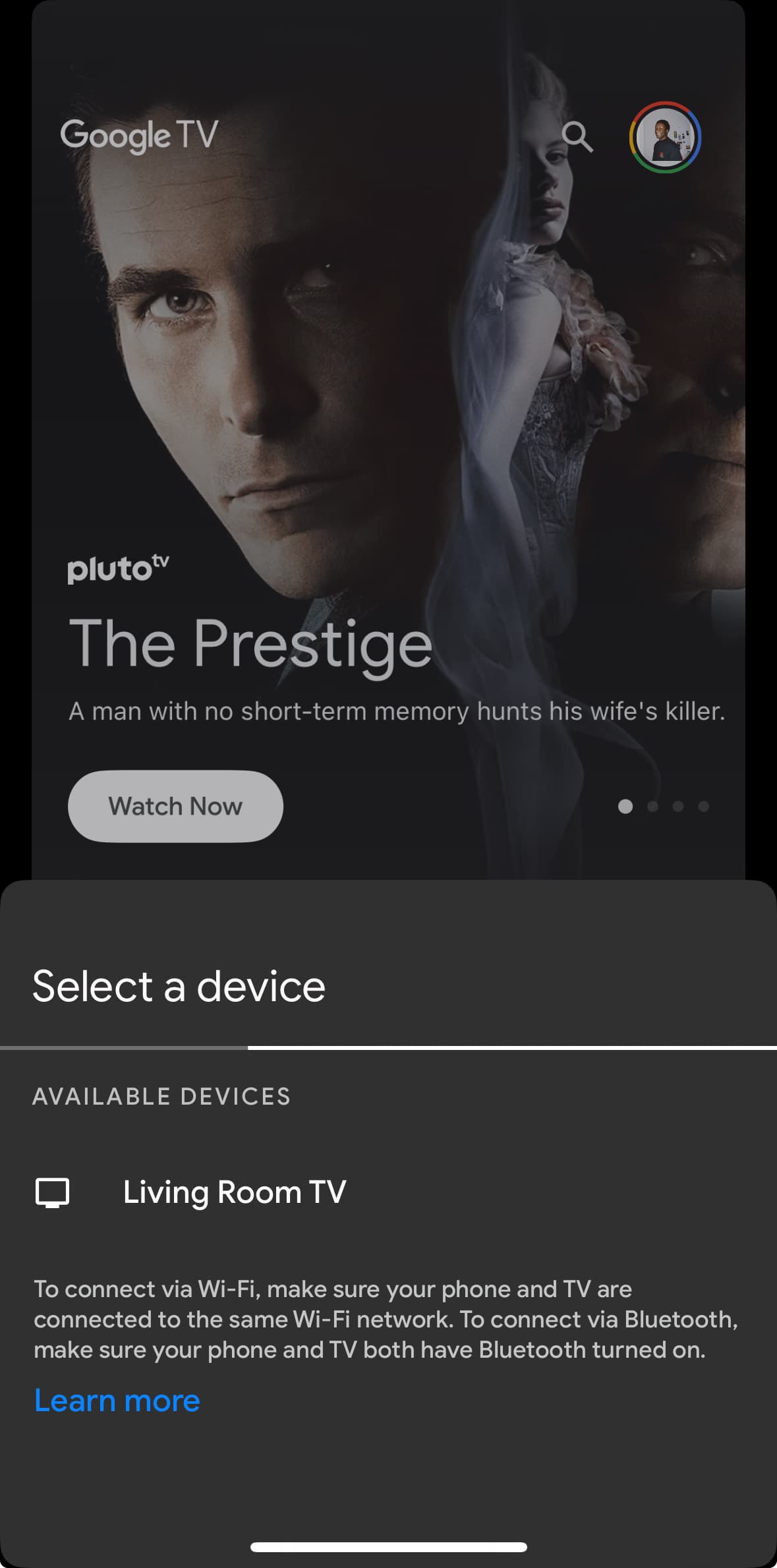
- Enter the code displayed on the device, and click "Pair".
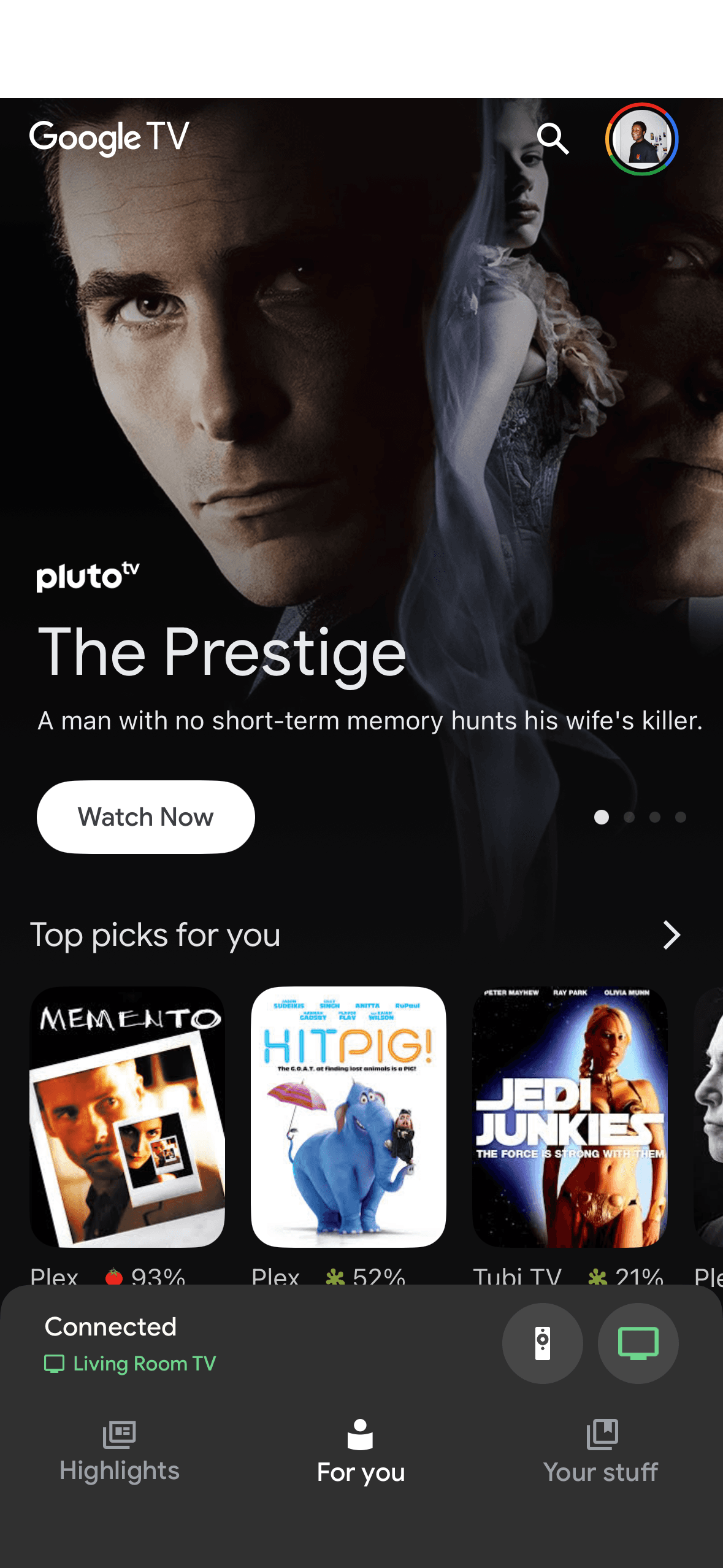
- Once paired, you can control the device's keyboard, volume, and a few other things from your phone.
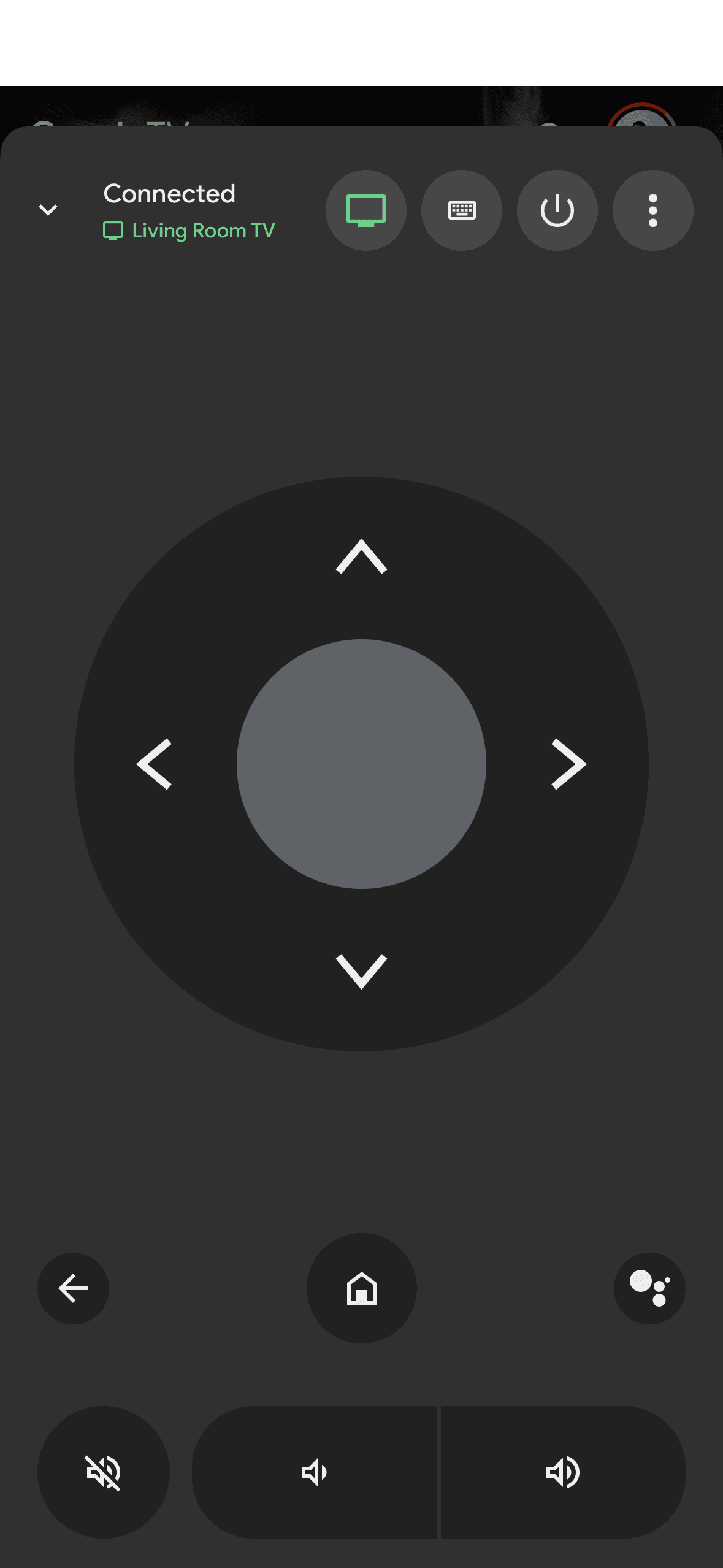
This is a pretty handy feature, and it's one of the reasons why I love these Google TV devices over something like Xiaomi, Roku, or AppleTV. I highly suggest you do this if you have a phone with you, it makes pasting links and typing out URLs, much, much easier.
Developer Mode
The next thing we need to do is enable developer mode on the operating system. This will allow us to install third-party apps, and officially "jailbreak" the device. To enable developer mode, remain in the settings menu and go to:
Settings -> System -> Developer Options -> Enable developer options
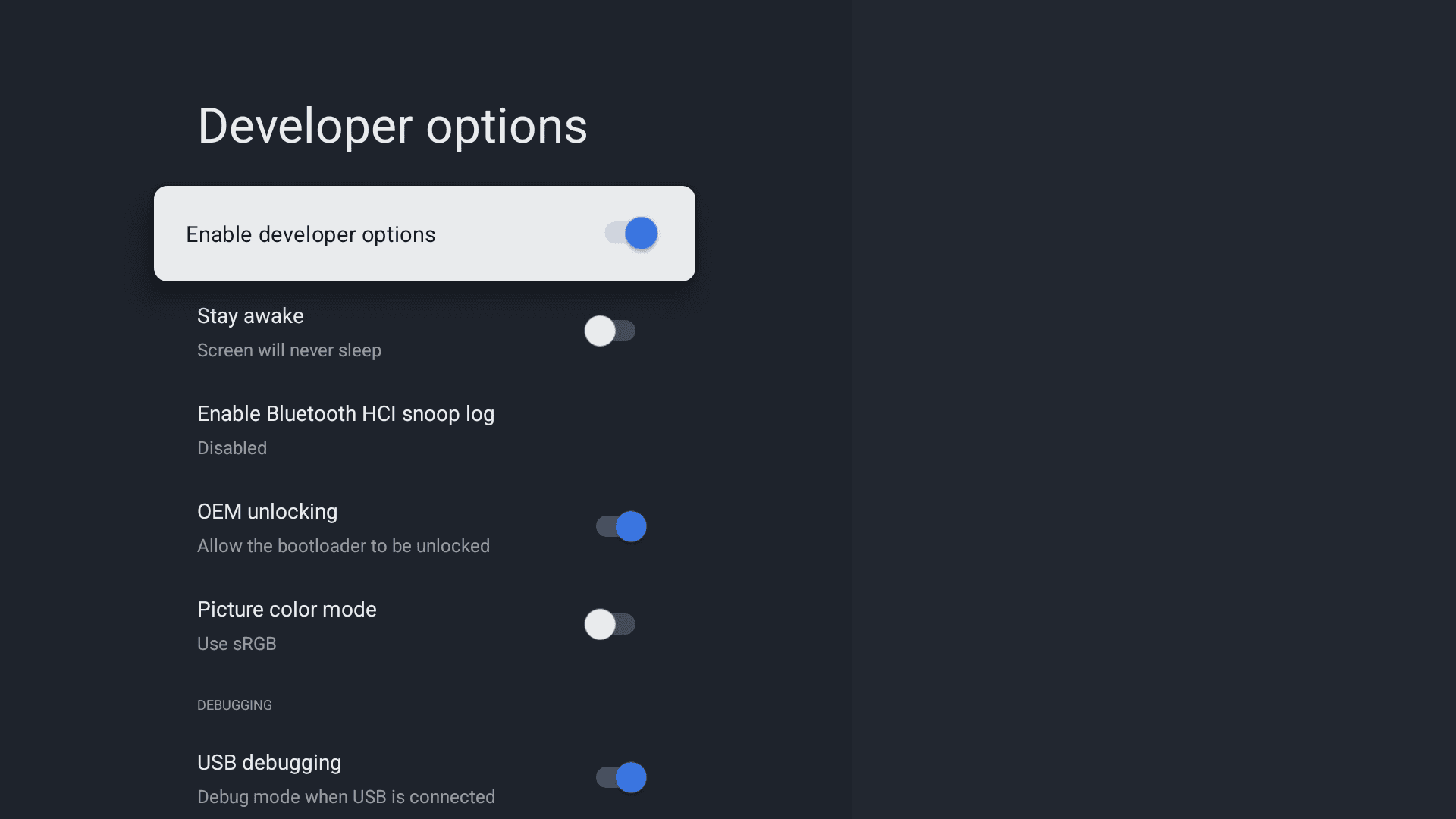
Without this, you won't be able to follow this tutorial, so please double-check that you've enabled developer mode before continuing.
Downloader by AFTV News
Now that we've enabled developer mode, we're able to install third-party apps. The first application we're going to install is as I mentioned, on the Google Play Store. It's called "Downloader by AFTV News".
To find it, head over to the Google Play Store and search for "Downloader". I already have it installed, but this is what the official app within the Play Store looks like (there's many copycats):
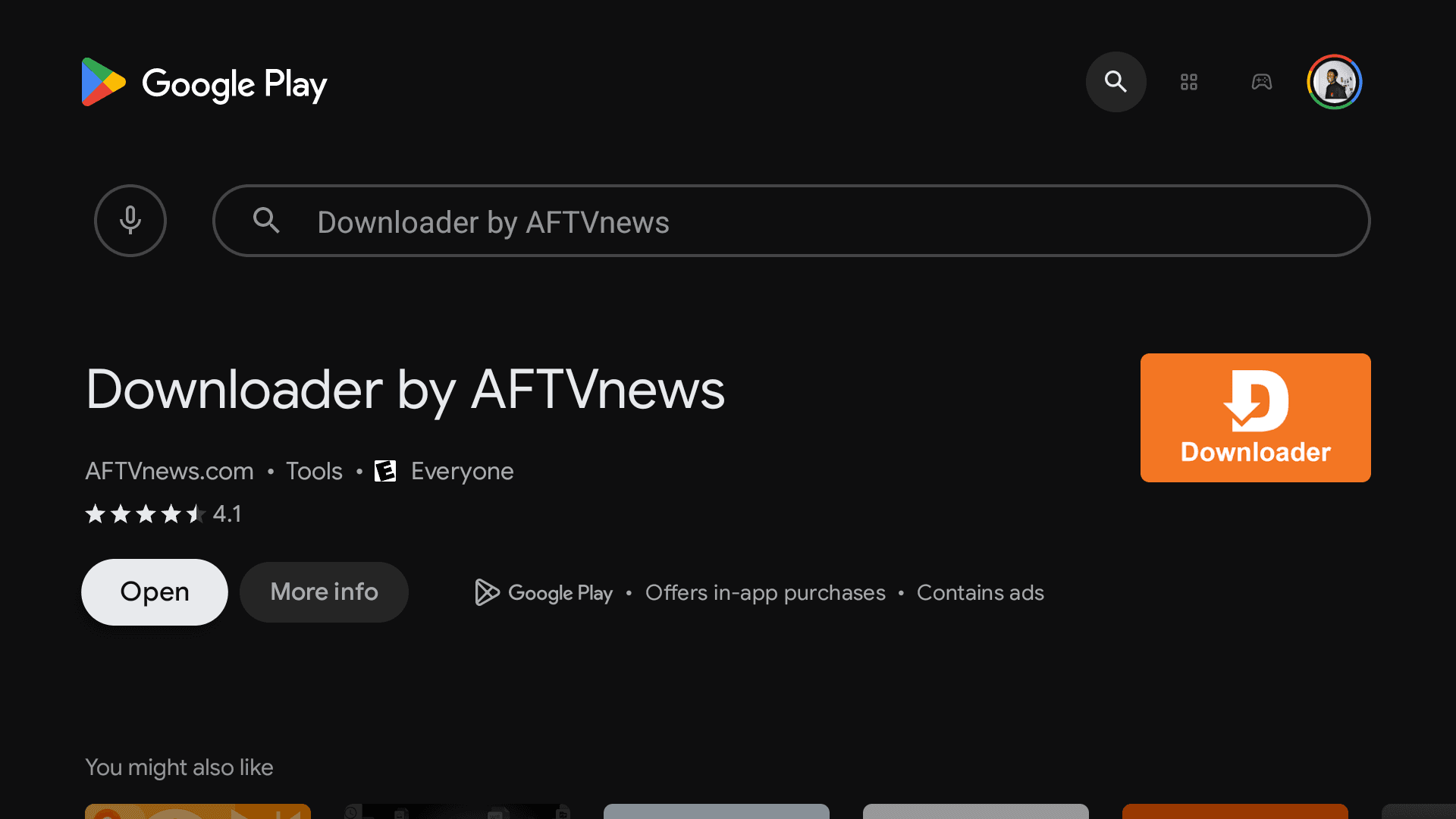
Once you've installed it, open it, and click on the search bar on the home screen of the app.
This application is a utility for Android, Google, and Fire TV devices that basically acts as a web browser and file downloader for us to easily sideload misc. apps and other files, just by entering the URL. It makes the process of retrieving third-party APKs smoother for us as users.
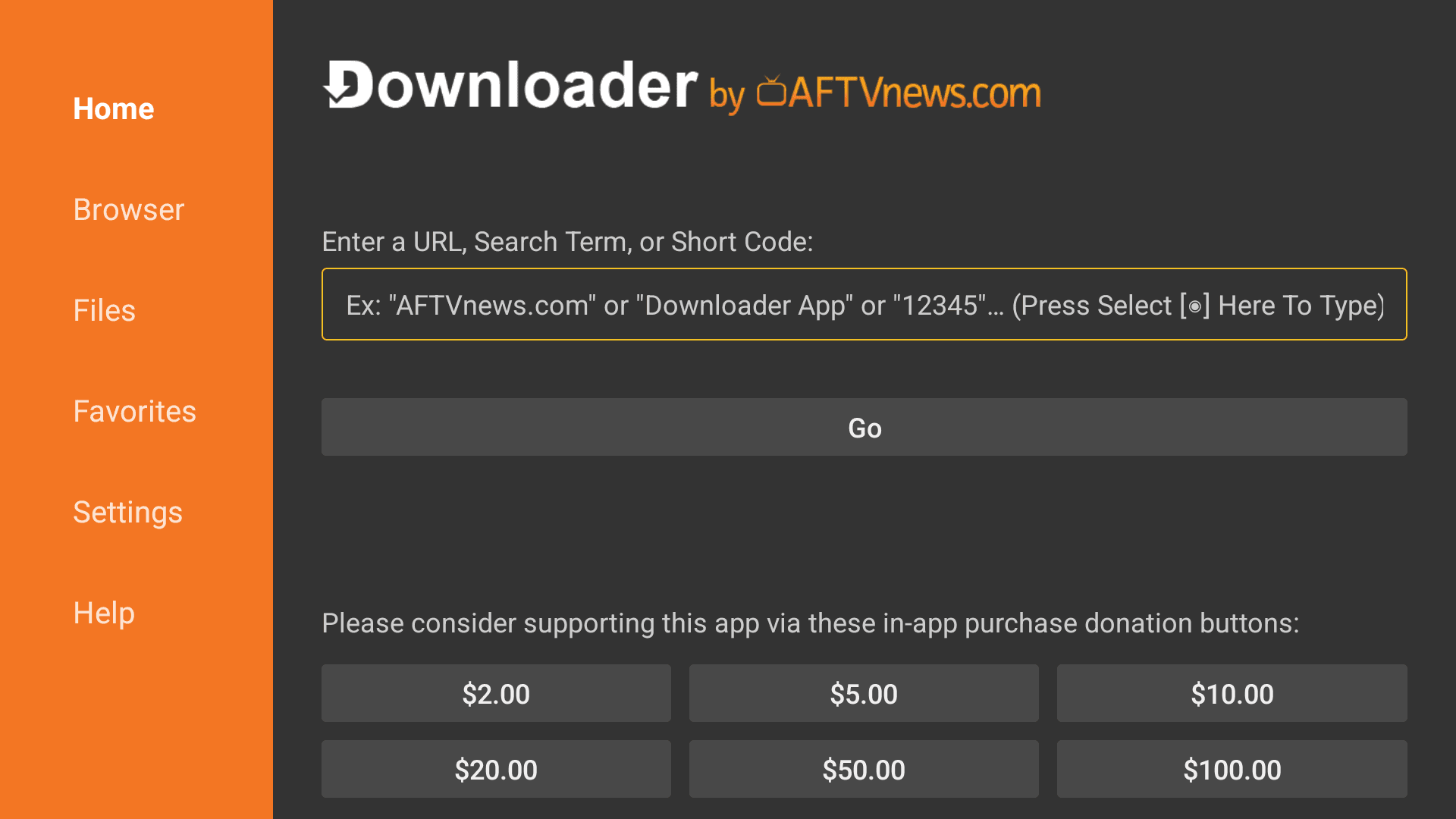
Enter the code 250931 and click "Go". You'll see the following screen, which is the Troypoint Toolbox homepage.
Troypoint Toolbox
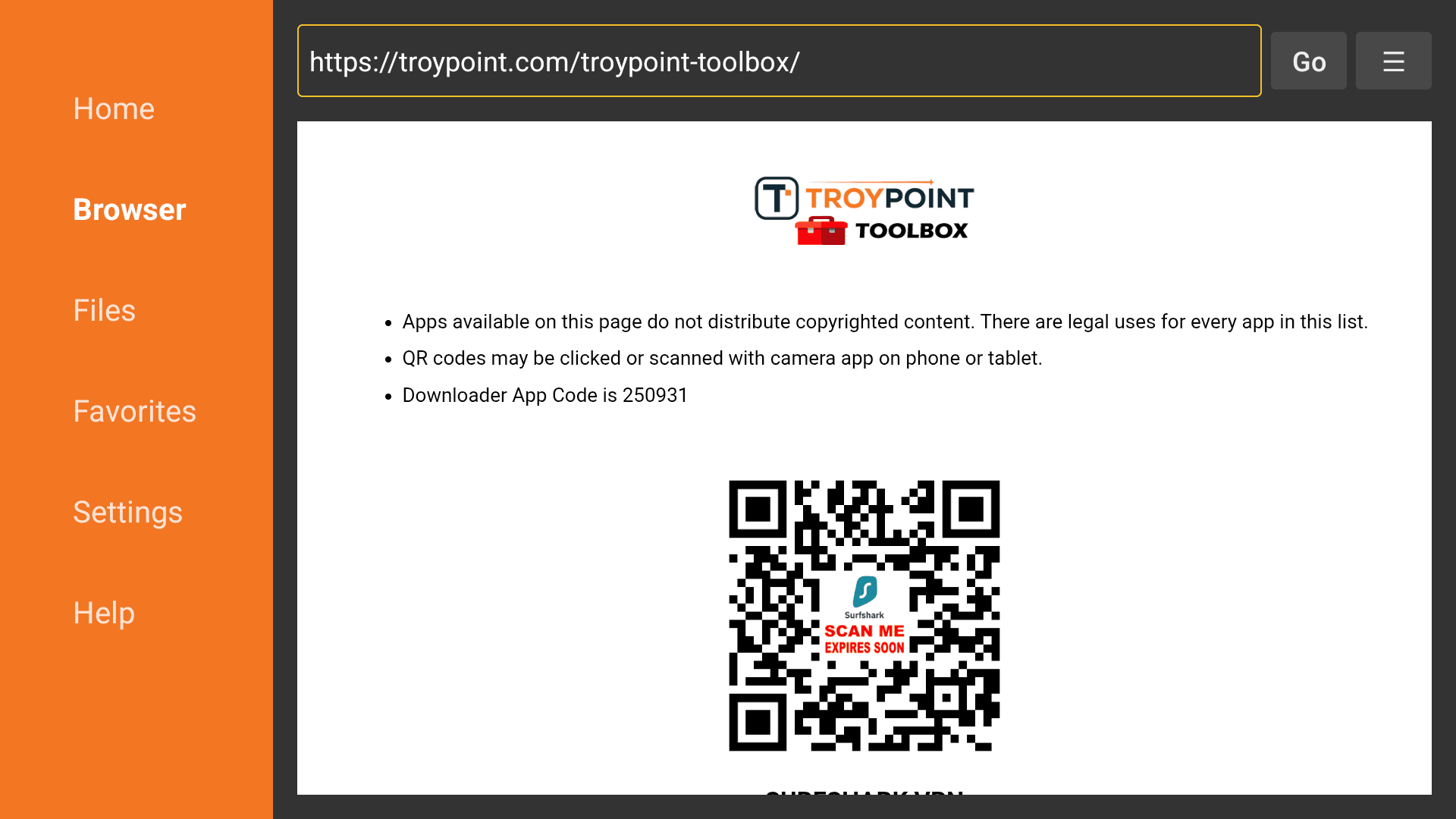
The Troypoint Toolbox is a collection of applications that you can download directly onto your device. If you've ever heard of the term "sideloading", this is pretty similar to that process.
There's quite a few apps that you're going to want to install on this page. Here's a list of the ones you'll want to install if you're following along:
Stremio
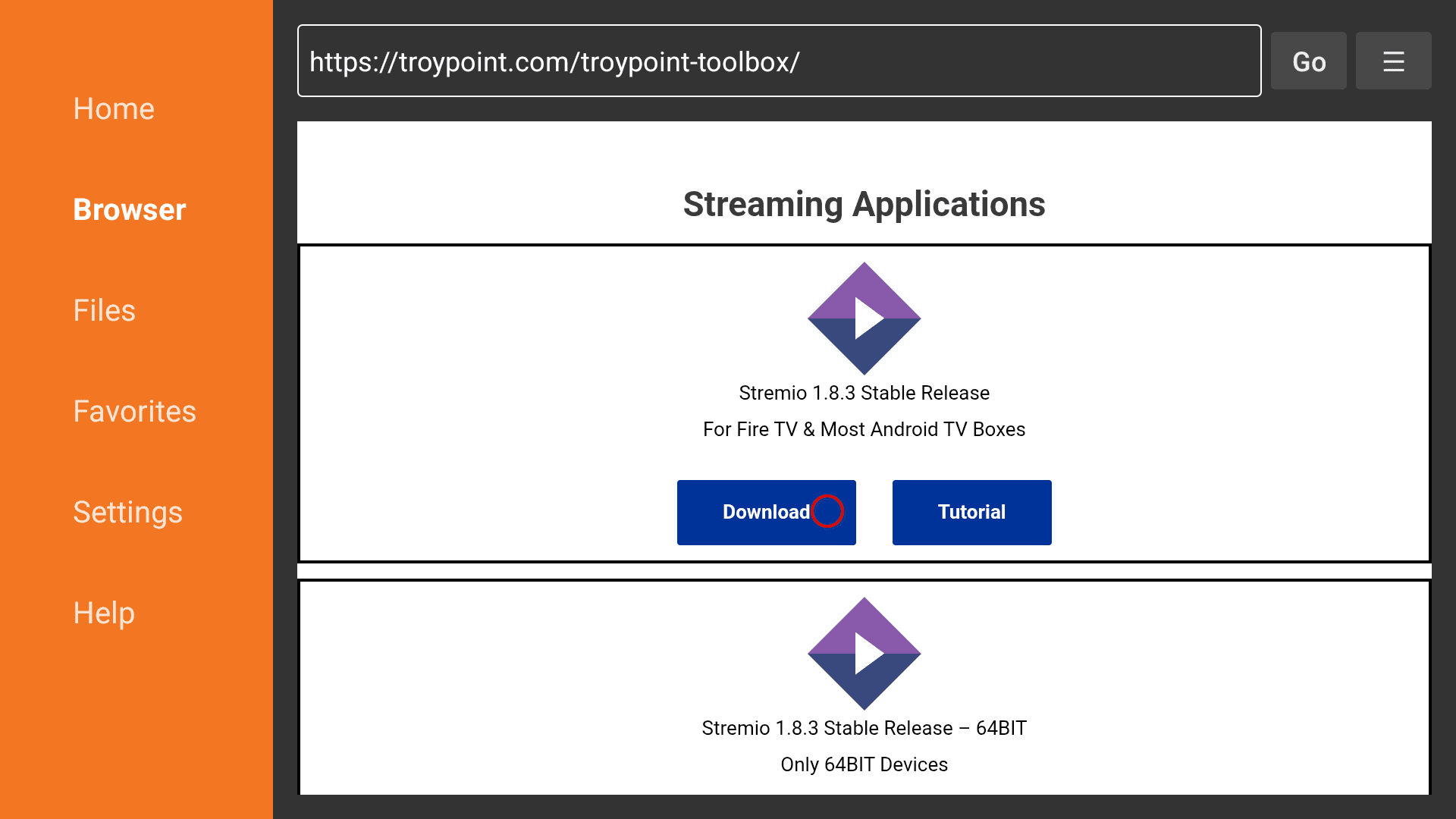
Stremio is a media player that allows you to stream media from a variety of sources using their addon system. It's a bit like the late movie-web, but better. It's free, open-source, and has a huge library of movies and TV shows. There's also a web interface for those who prefer to use a browser.
SmartTube
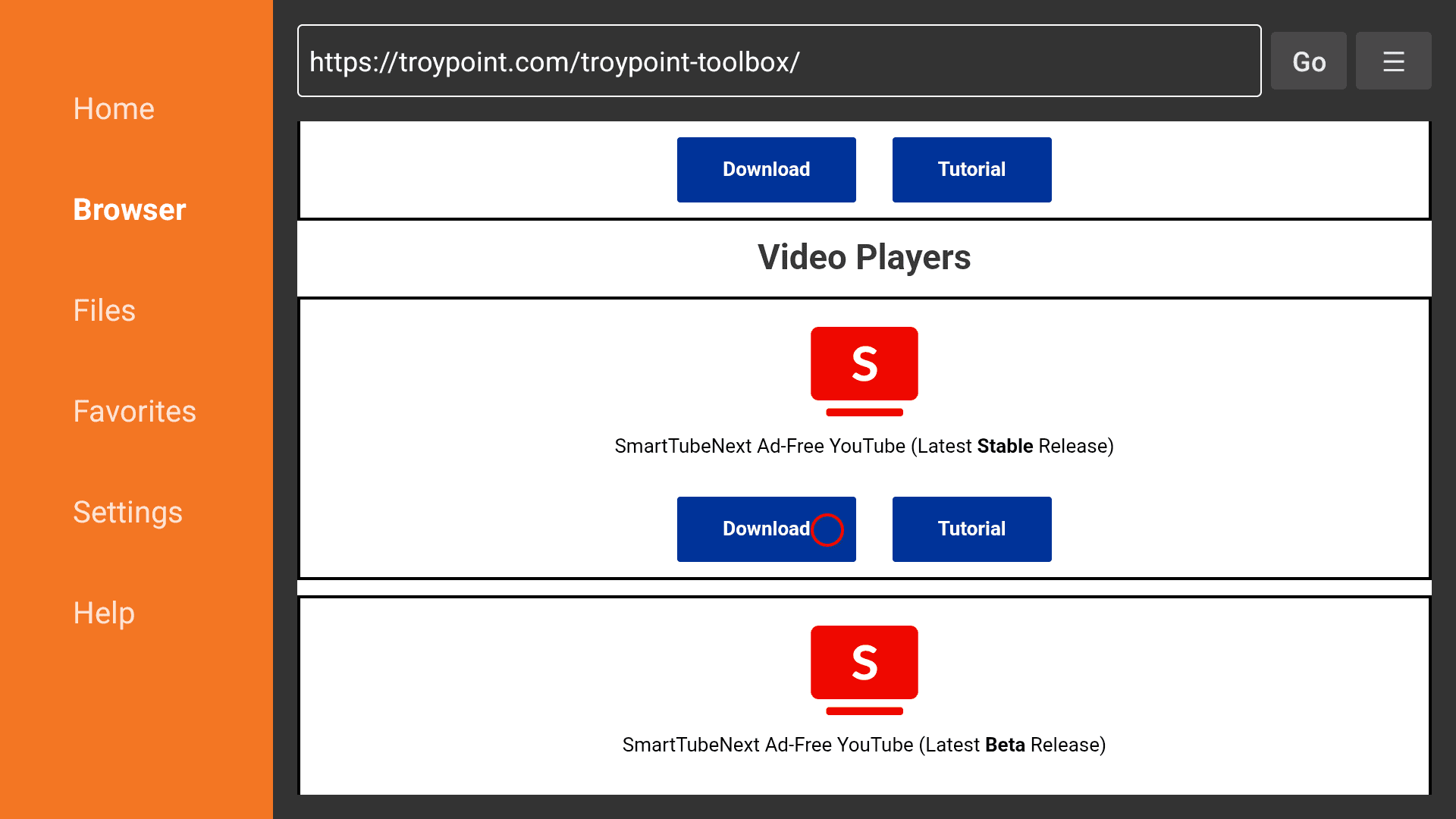
SmartTube is a third-party YouTube client that has built-in SponsorBlock, AdBlock, and a bunch of other features that are missing from the official YouTube app. It's free, beautiful, and has all the stuff you'd expect from a YouTube client.
Surfshark VPN
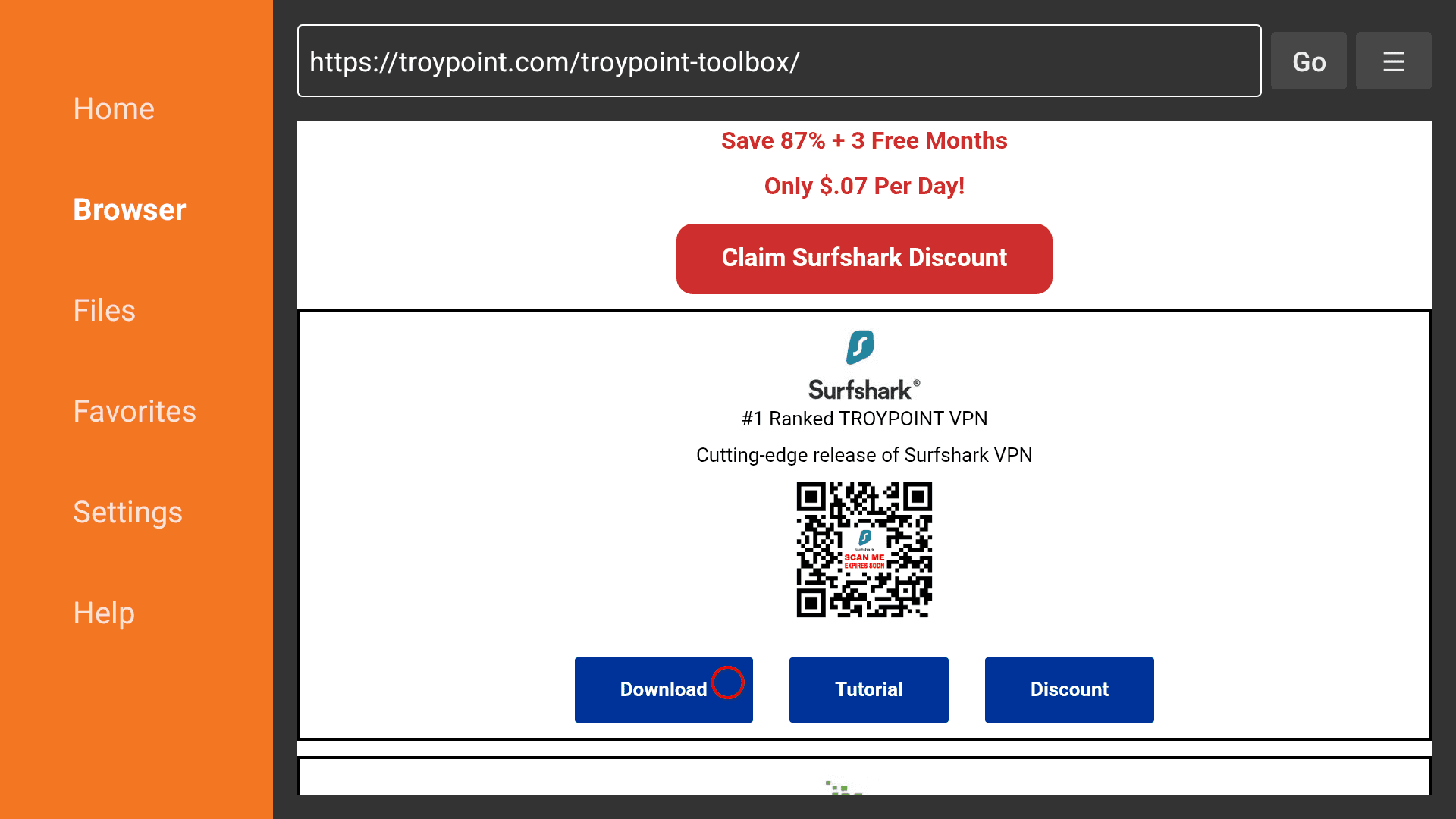
Surfshark VPN is essentially the de facto VPN for torrenting. If you don't want your ISP to send you a strongly worded letter, and don't want to expose yourself to the seeders from the torrents being used here soon, you'll want to use a VPN. Surfshark is not a free service, but trust me, it's worth it.
Projectivy
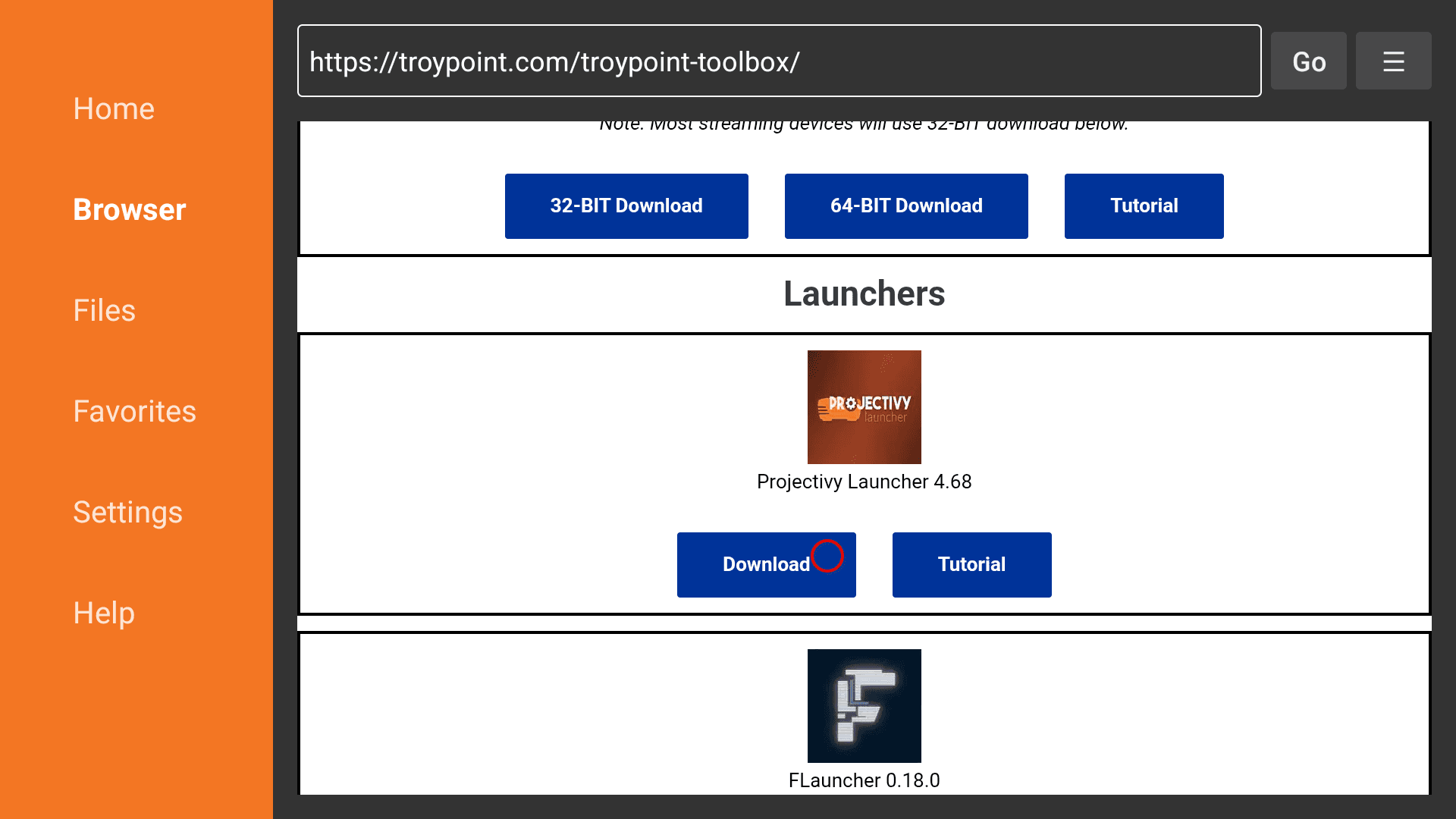
The last thing to install is Projectivy. This is a custom launcher that will replace the default launcher on the device. It removes a lot of the bloatware and upsells that come with the device, making the device feel much more like your own.
Allow unknown apps
When clicking download for these applications, you'll likely be prompted with a warning like this:
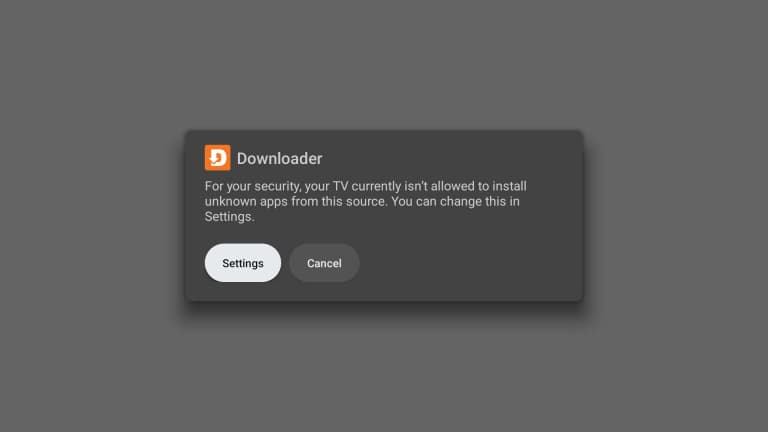
For each of the applications, you'll need to click this toggle to allow unknown apps. This is a security measure Google's been implementing to prevent sideloading, but luckily there's still a way to get around it. Crossing my fingers that Google doesn't block this soon.
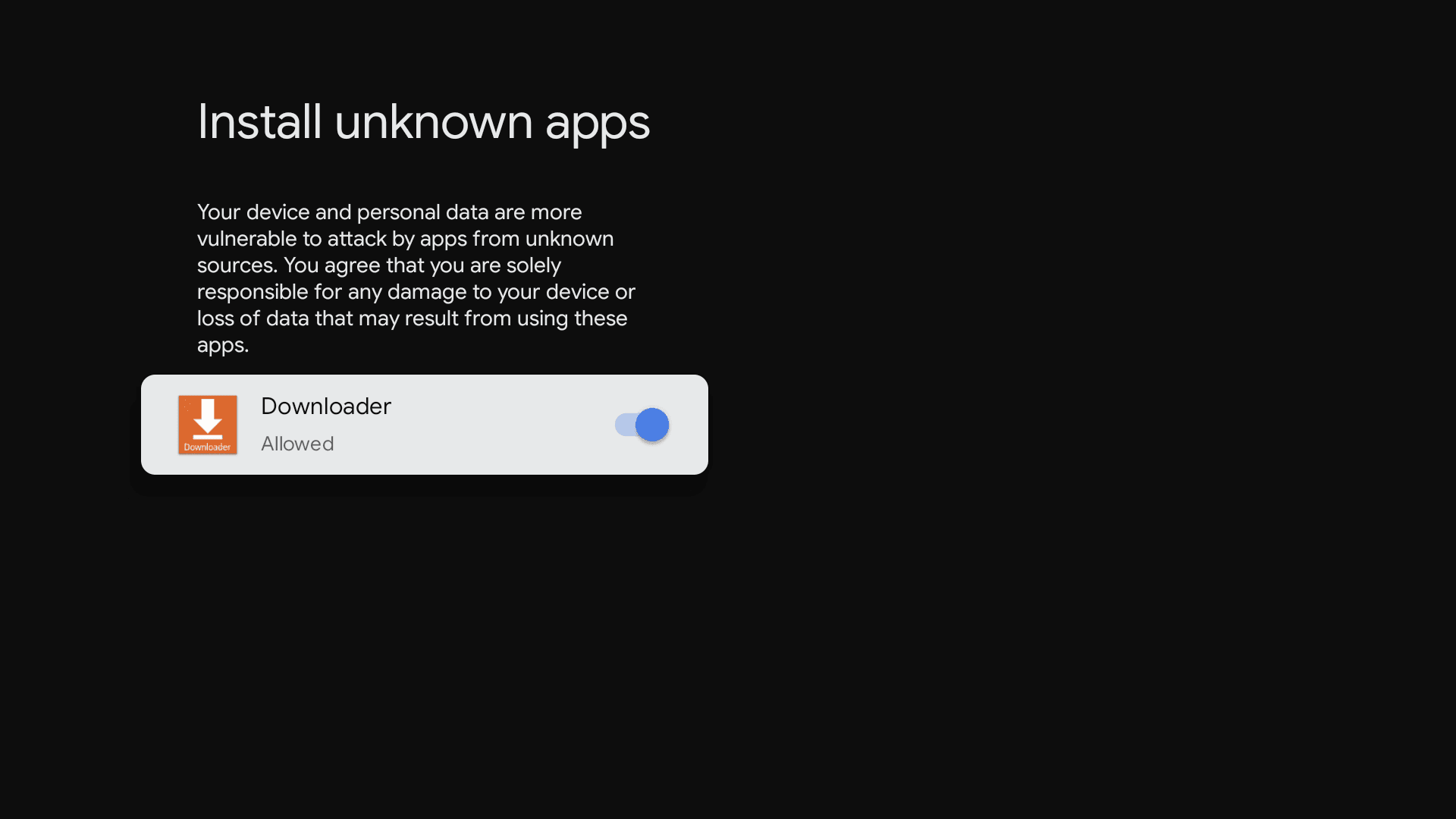
Once you click install, make sure to delete the APK file from your device after the installation is complete. They take up a lot of space, and you don't need them anymore. Now, let's get to the fun part.
Customizing the launcher
Now that we've installed some apps, let's customize the launcher and get rid of the default bloatware.
Go to your home screen, and you'll see the default launcher. Go to the "Your Apps" section, and scroll over to the "Projectivy Launcher" app. Click on it, and you'll see the following screen:
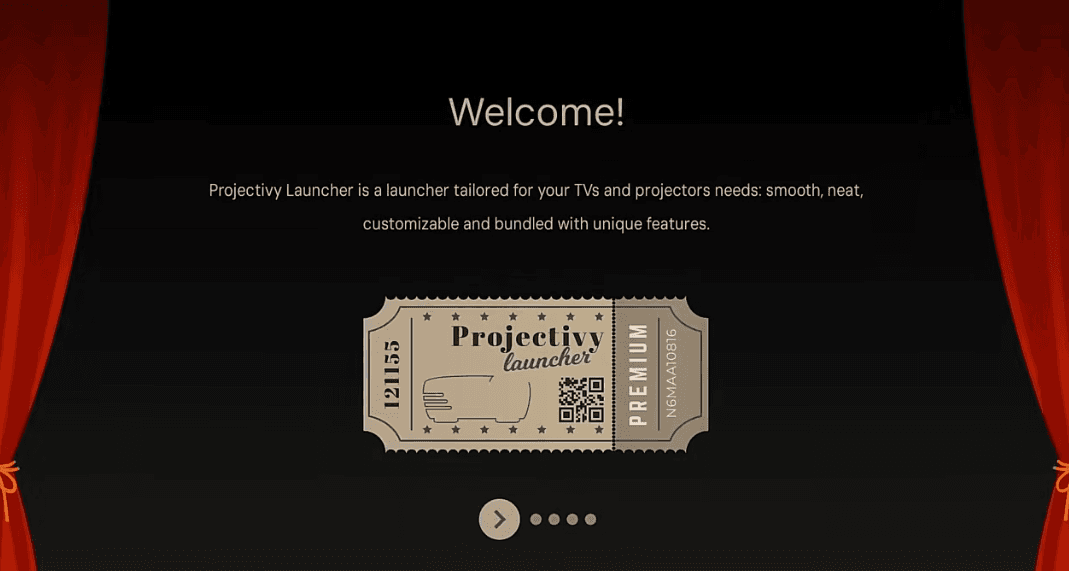
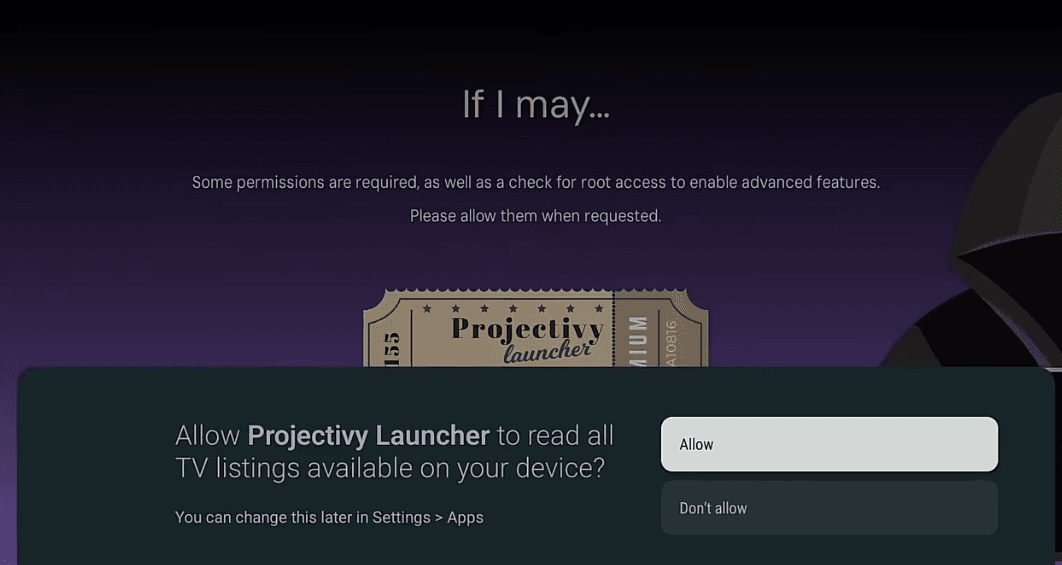
Click the right arrows on your remote, then when you see this popup, click "Allow" for "Allow projectivy to read all TV listings available on your device?".
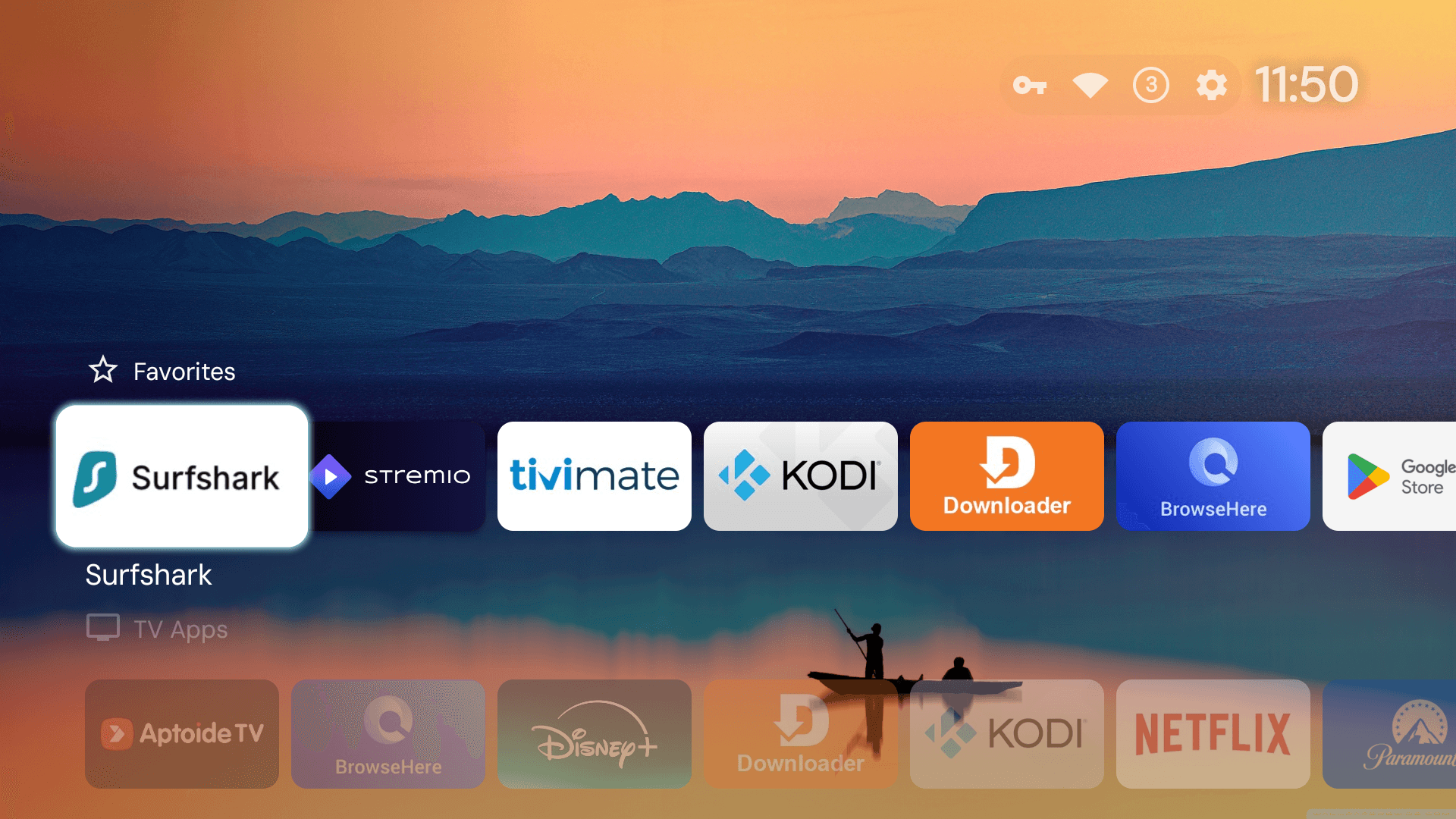
And then you'll be on your new launcher!
If you don't want to see the regular Android TV launcher and instead want to use the Projectivy Launcher when turning on your device, you can do so by going to Settings/Gear Icon -> Projectivy Launcher settings -> General -> and toggling "Override current launcher".
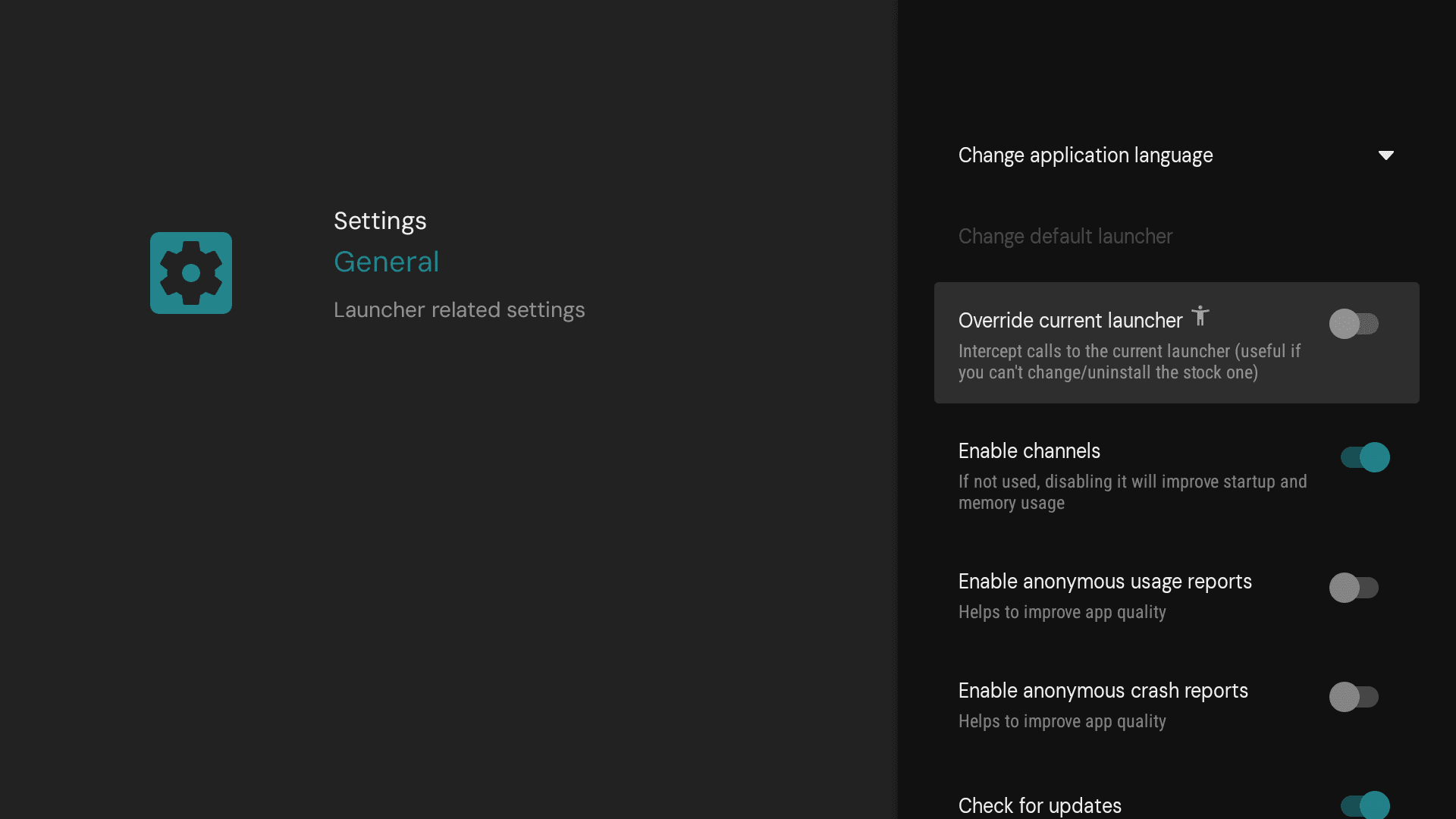
After you've done that, click the home button on your remote, and notice how it won't take you to the home screen that we started with. It'll now take you to the Projectivy Launcher landing page, meaning that you're ready to go! Wasn't that easy?
Part 2: The real-debrid + stremio setup
Now that we've got our device set up, let's talk about real-debrid and stremio.
Real-Debrid
To put it simply, Real-Debrid is a premium file hoster; it works with streaming apps like Stremio to fetch high-quality media files quickly and reliably.
The way it works is that real-debrid downloads the torrent to their servers, and then caches them. This allows for faster streaming, and secures your IP address from the seeders unlike in traditional torrenting setups. (I'd still suggest using a VPN for this, but that's just me.)
Is this mandatory?
No! Real-Debrid is an optional subscription service that you can use to stream media. It's not mandatory, but it's a good way to get access to most if not all of the content you want to watch without buffering and still have an insanely high quality experience.
In this section I cover some free alternatives to Real-Debrid that make use of HTTP streaming links, like the kind you may find on Nyumatflix or similar.
How much does it cost?
Of course, since Real-Debrid is a subscription service, for people trying to avoid paying for a subscription, it might not be the best option.
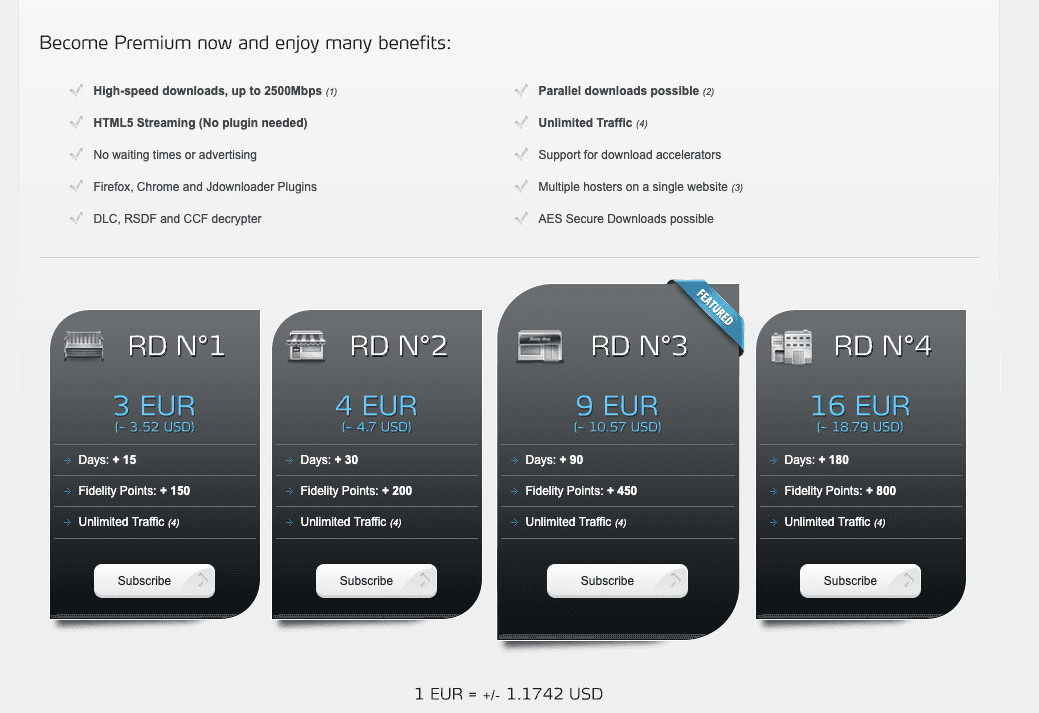
As you can see, it's not "cheap" - however, I'd suggest real-debrid if you want utmost security, quality, and speed/availability. For me, these costs outweigh the never ending increases in streaming service prices.
Setting up Real-Debrid
To set up real-debrid, pretty much all you'll need is the API key. You can find it by going to "My Devices".
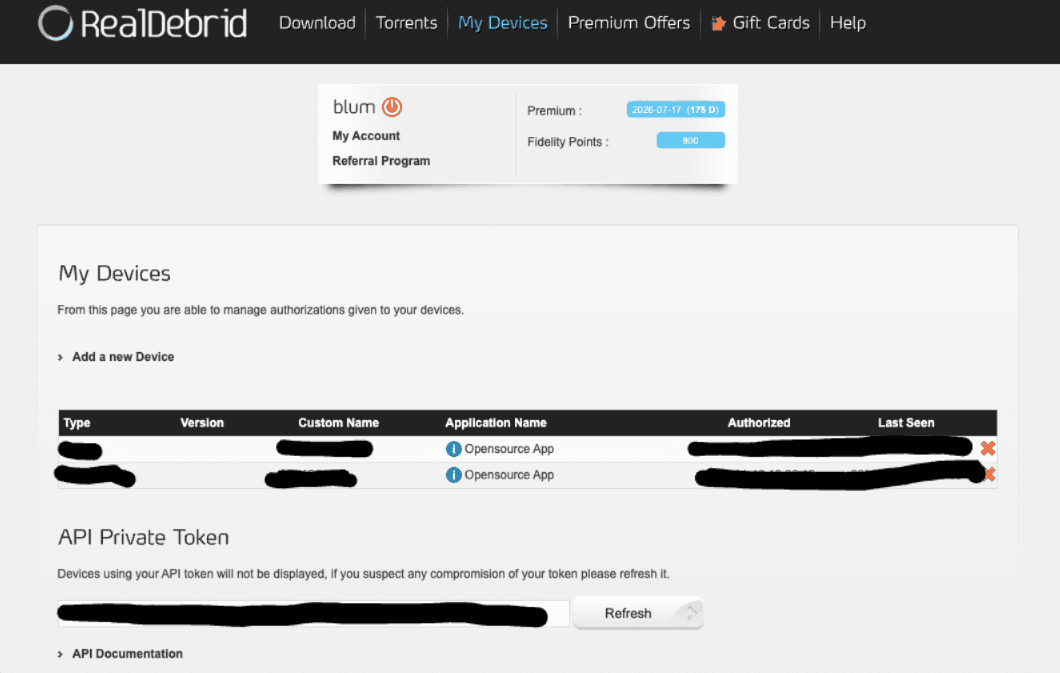
I of course redacted mine, but make sure to grab that key and store it somewhere safe. Once you've got the API key, it's time to talk about stremio.
Stremio
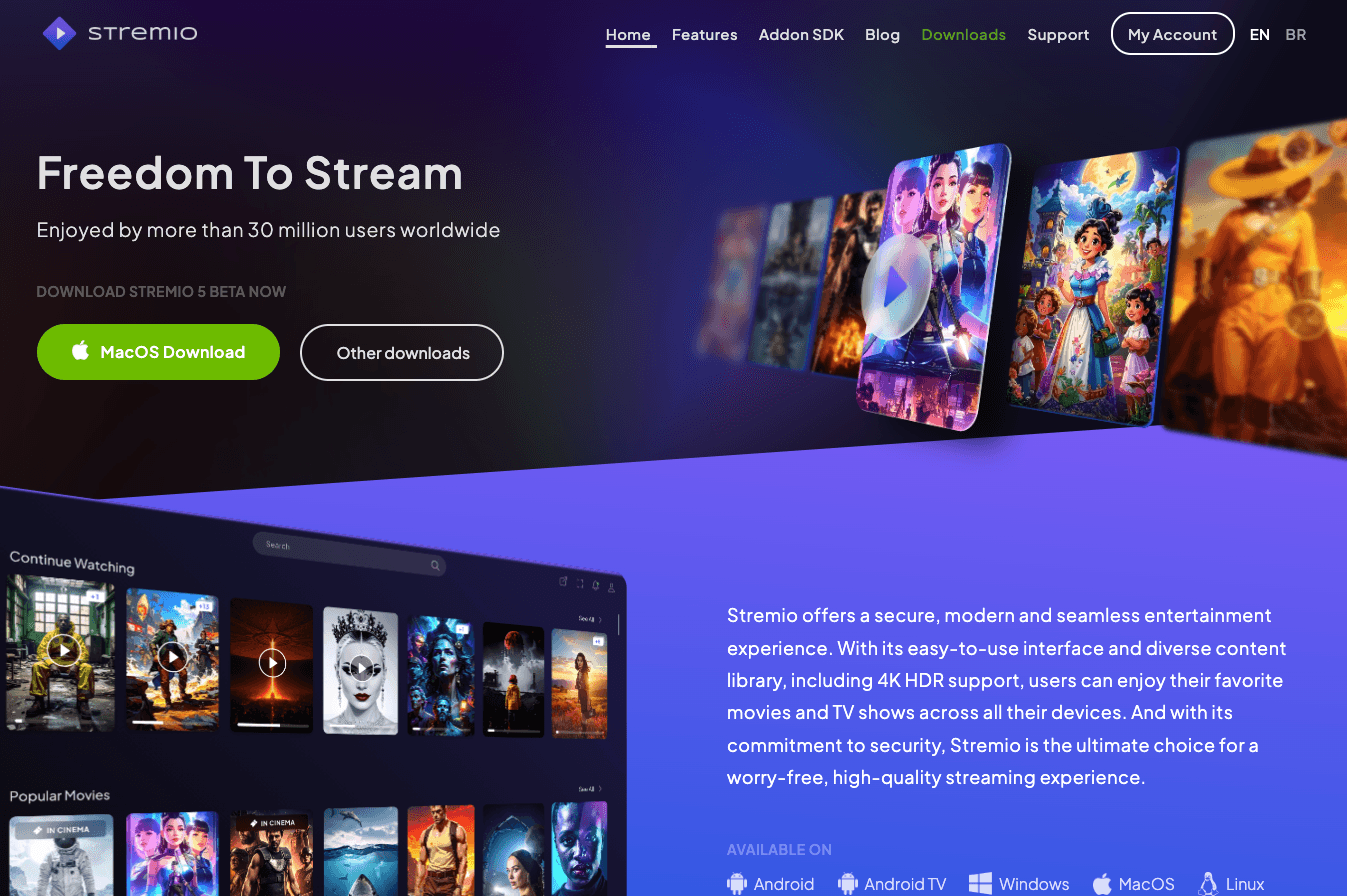
Stremio is a free media center application that aggregates video content from various sources into a single interface, allowing users to stream movies, TV shows, and live channels. It uses an add-on system to pull content from various sources, including real-debrid.
First thing I'd suggest is to create an account so that you can sync your library across devices.
Adding an addon
After creating an account, let's go on to the web interface to add our first addon! There's a button on the sidebar with a jigsaw puzzle icon. Click it, and you'll see the following screen:
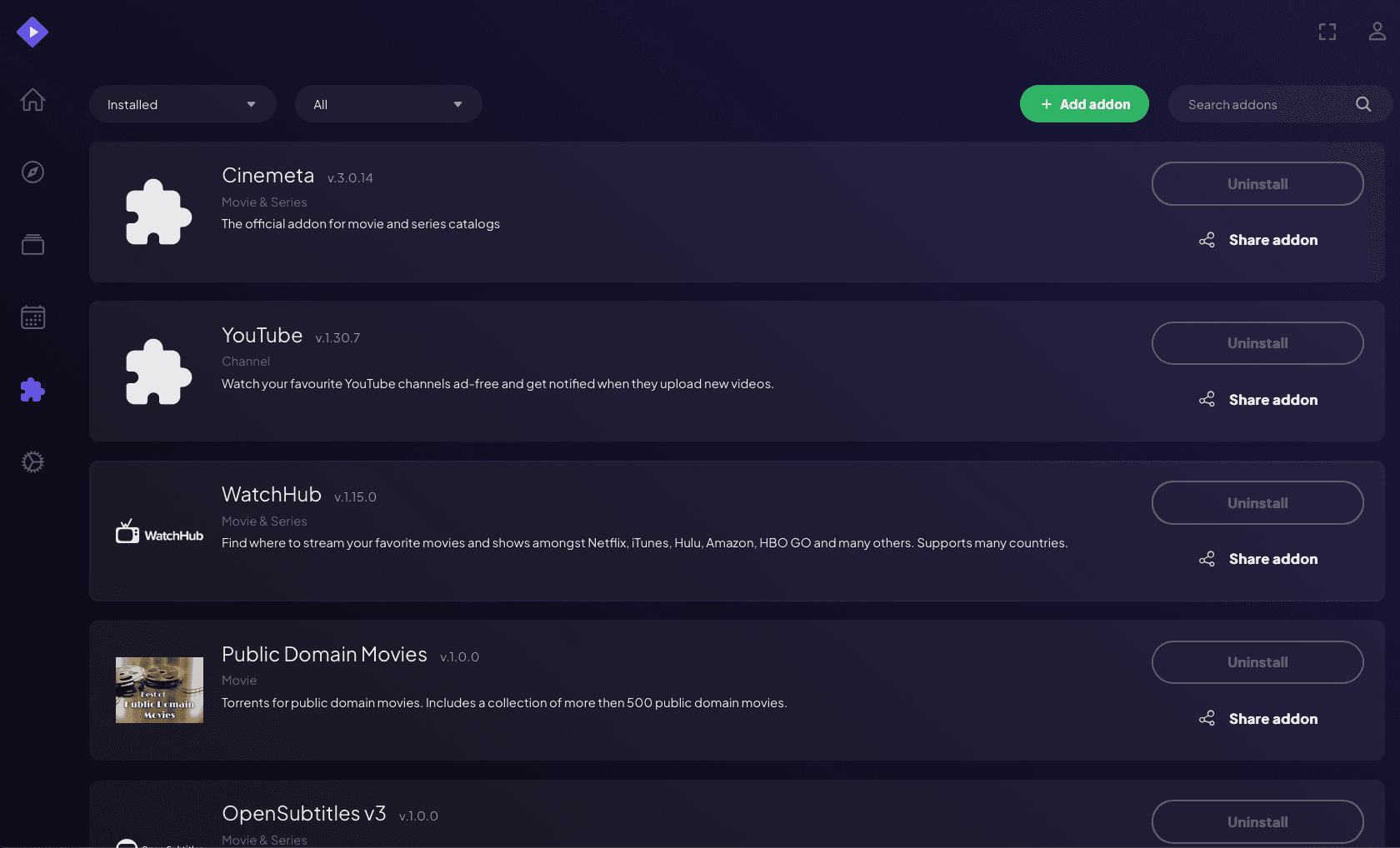
Stremio addons are essentially web servers that function as plugins similar to RSS feeds or websites. They're generally formulated into a manifest.json file that the Stremio app reads to load the addon. I like to say that there's four different types of addons:
| Type | Description |
|---|---|
| Catalogue | These addons give you lists of shows and movies - for example top movies of the month, or IMDB/Trakt lists. |
| Provider | These addons give you a list of sources from various different locations once you have selected a movie or TV episode from a catalogue addon. |
| Meta | These give movie posters, descriptions, ratings, etc. in the UI when viewing TV shows/movies/episodes. |
| Utility | These add subtitles, Trakt integration, etc. |
Some addons can do multiple of these things, but these are the categories that you'll see most often. For example, real-debrid's addon is a provider addon that gives you a list of sources from various different locations once you have selected a movie or TV episode from a catalogue addon. It doesn't give you a manifest.json file, but it does give you a list of sources that you can stream from. So that's why we'll need a way to get them, using a scraper called Torrentio.
Torrentio
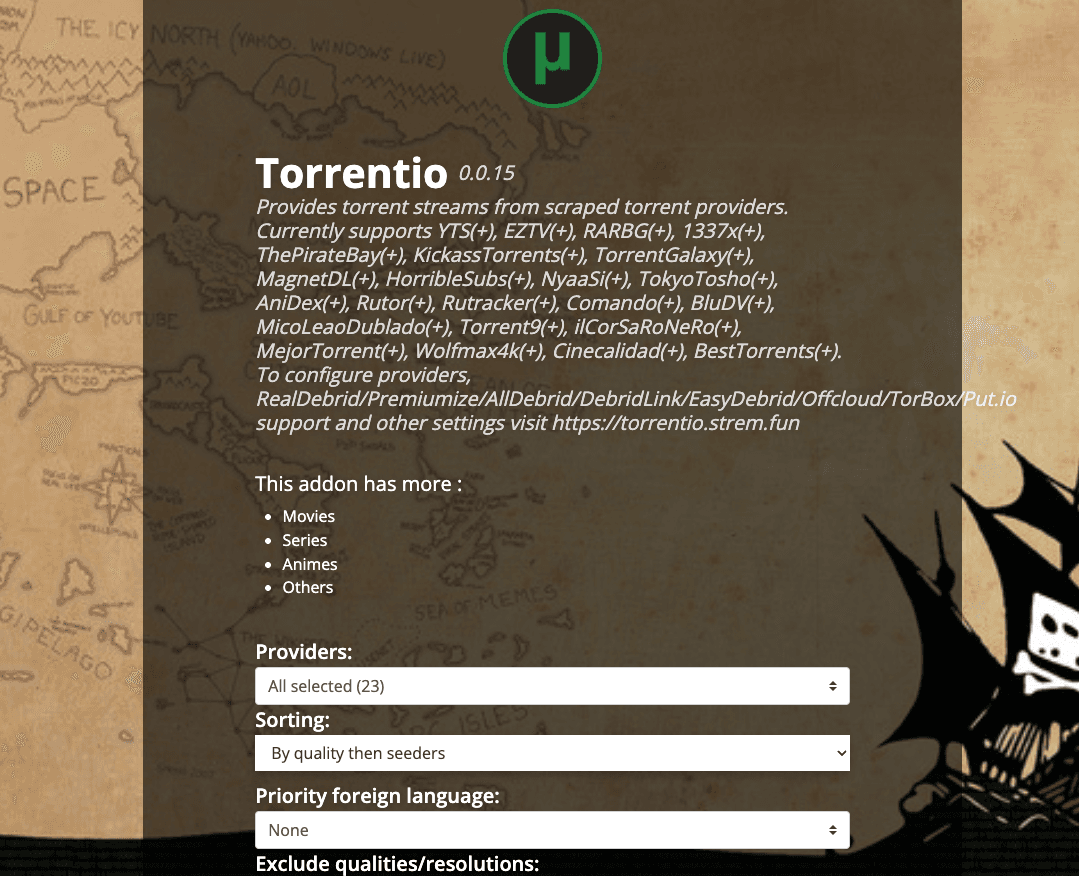
Torrentio is a scraper that provides streams from various torrent providers (like we've all heard of the Pirate Bay, 1337x, etc.). It's configurable with multiple providers and generally utilizes debrid providers to automatically retrieve the best quality streams.
Configure
To configure Torrentio, you'll need to go to https://torrentio.strem.fun/configure, fill out all the fields, and make sure once you get to the "Debrid Provider" section, you select "Real-Debrid".
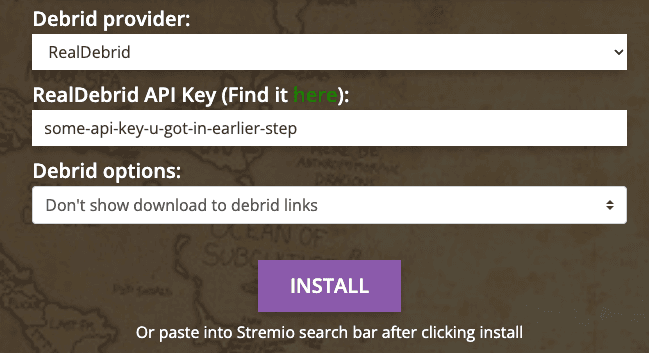
Once you've filled out all the fields with the information you got from real-debrid, click the "Install" button. After that, you'll see the Stremio modal appear, asking you to install the addon:
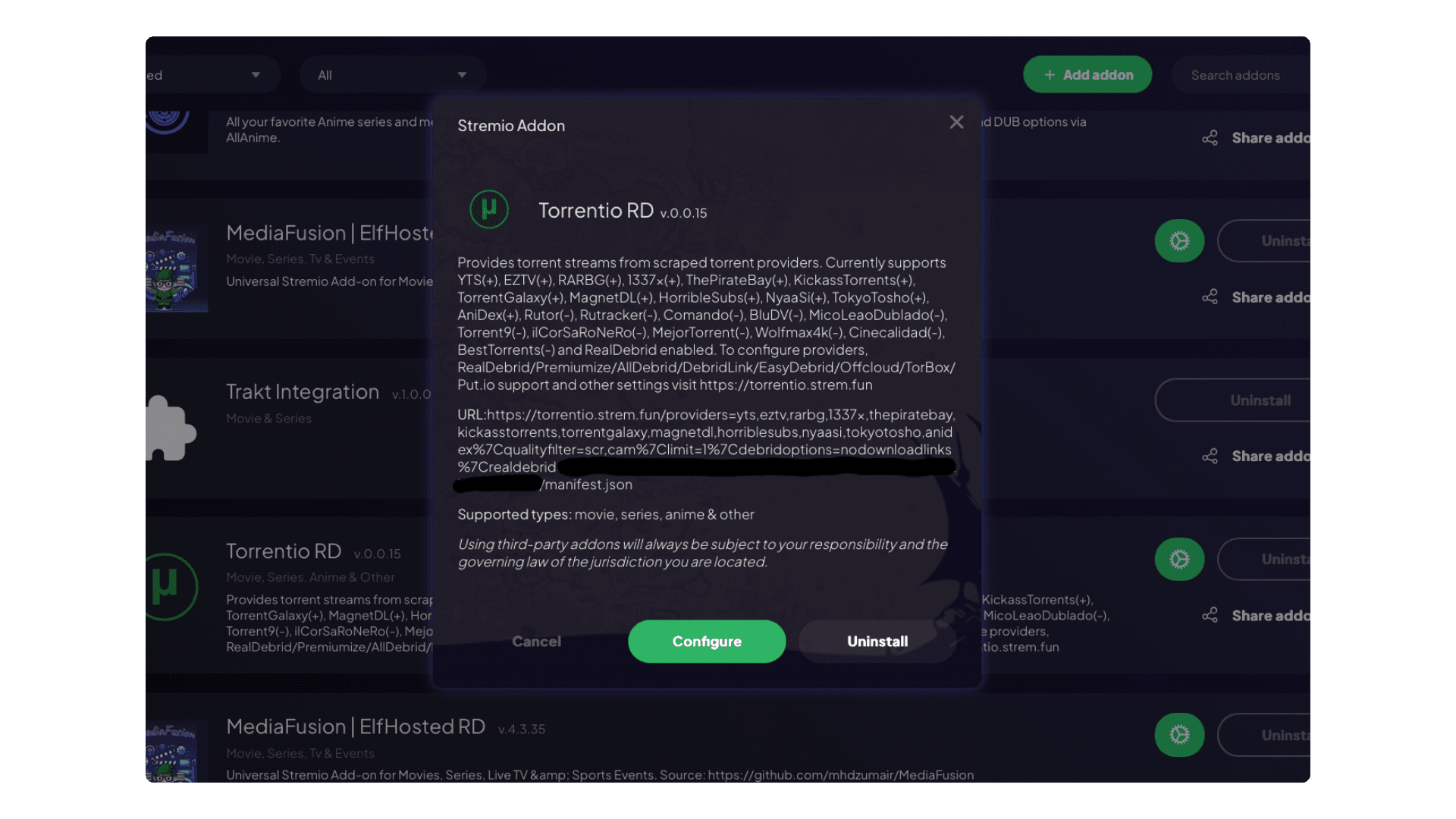
You can copy the manifest.json link that Torrentio gives you and just paste it into the stremio addon page after clicking the green "Add Addon" button in the top right.
Then click "Install" again, and you'll see the addon installed. (I already have it installed, so our UIs may differ slightly.) You can now close the modal and go back to the stremio addon page.
Testing it out
Now that we've got everything set up, let's test it out! Head back over to your Android TV device, and open up Stremio. Make sure you're logged in to the same account that you used to install the addon within.
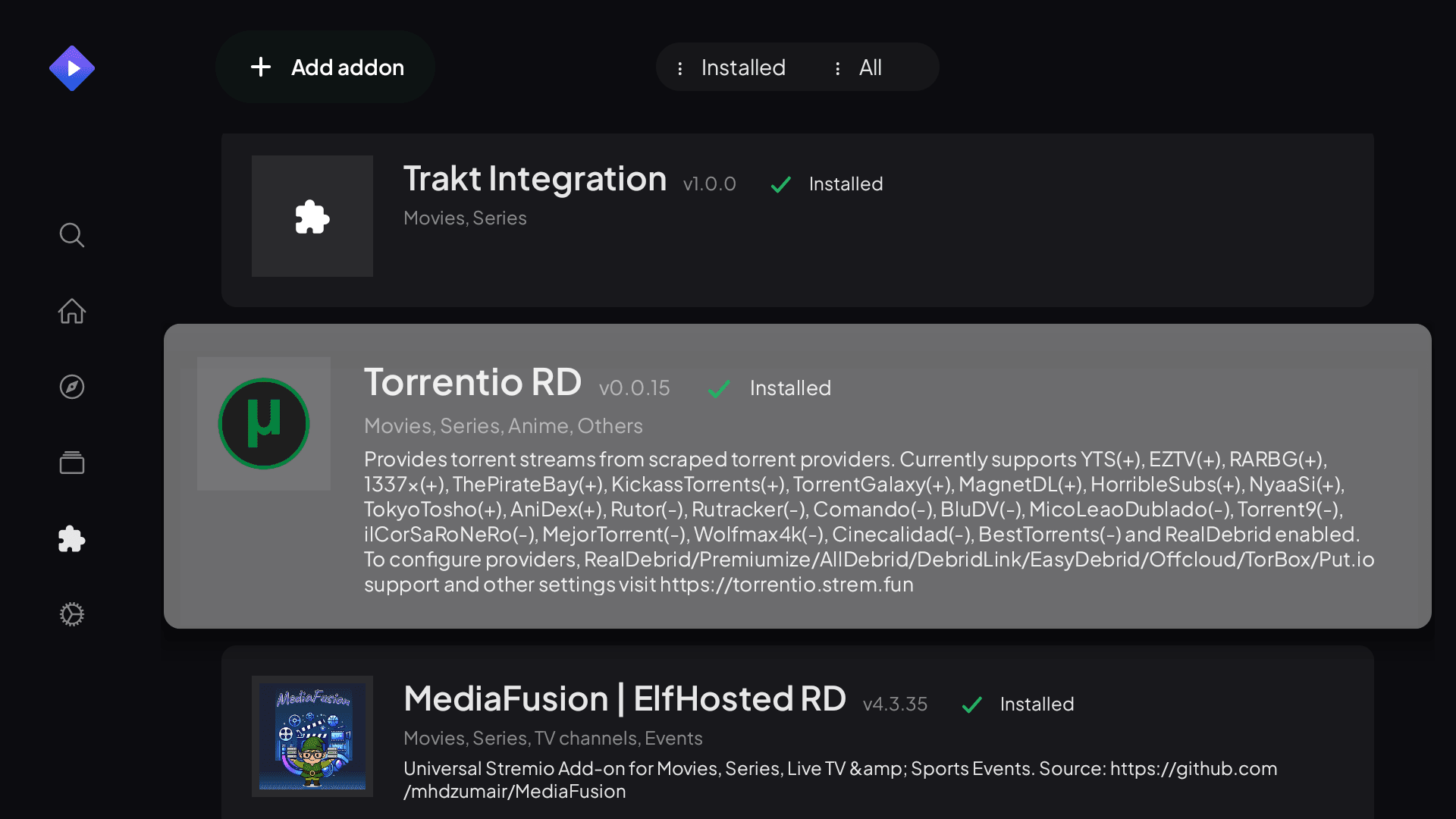
To confirm everything's in sync, you can go to the "Addons" page again and see if the Torrentio addon is installed on the device like so:
Now, let's search for something to watch. I'll search for one of my favorite anime, "White Album 2".
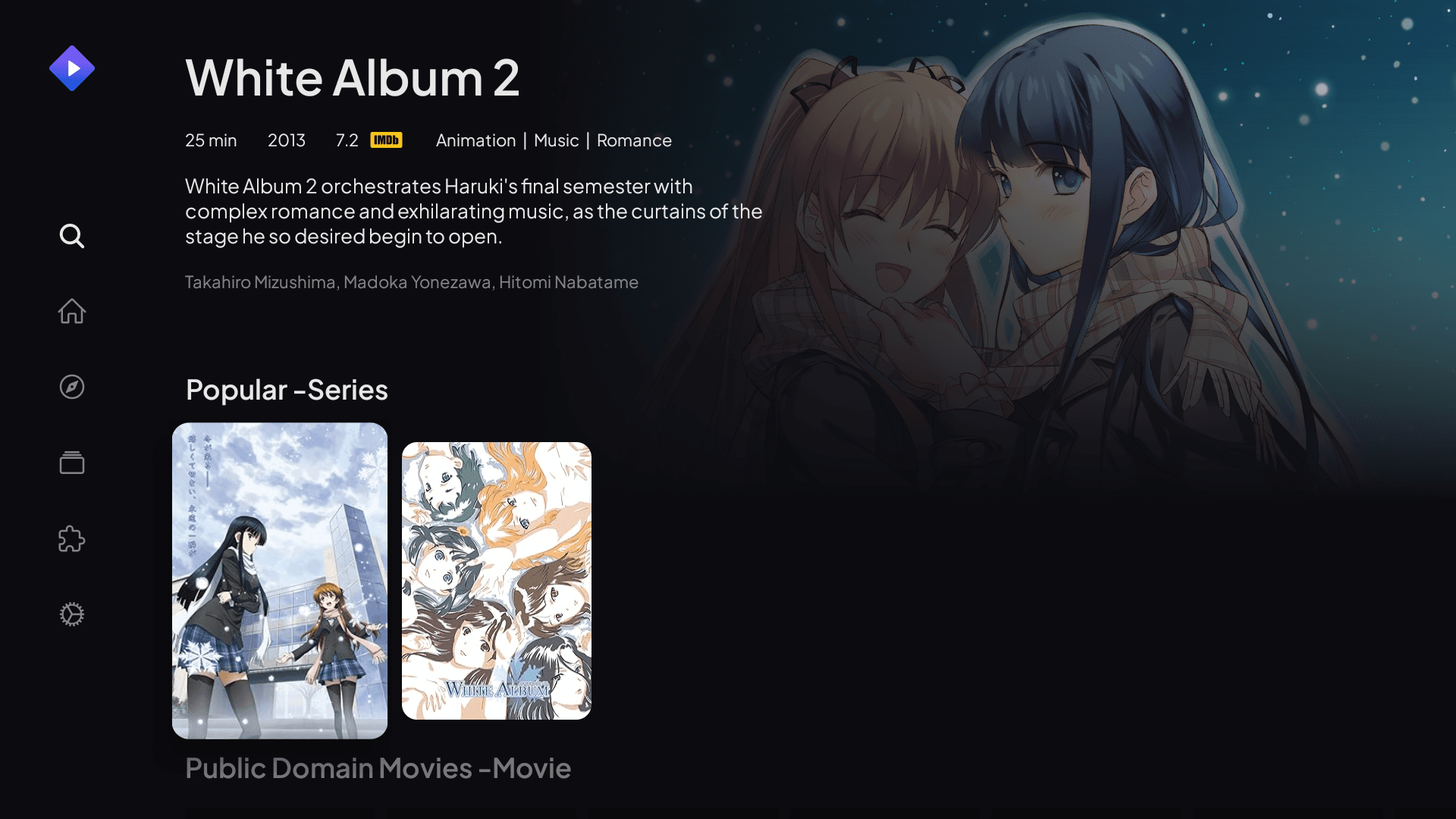
Once you find the show you're looking for, click on it to open the details page.
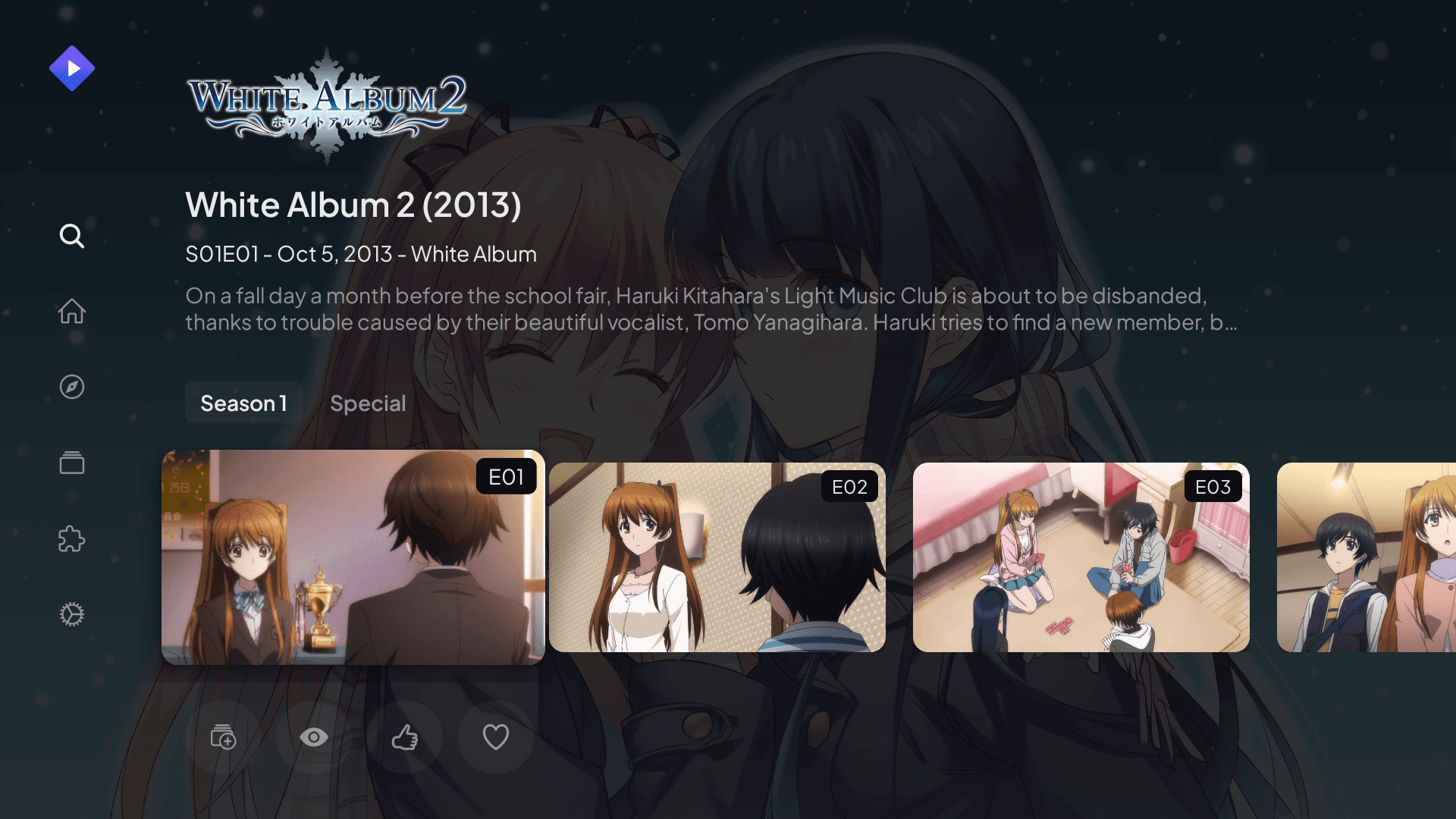
Now here's where the magic happens. Click on an episode, and you'll see all the available streams from Torrentio. Because we connected Real-Debrid, you'll see streams marked with "[RD+]" which means they're cached on Real-Debrid's servers and will load almost instantly with no buffering.
Sometimes, especially when loading non-frequently accessed content, it may not be cached by the debrid service. You'll know this is happening if you see a message after trying to play some content, like this:
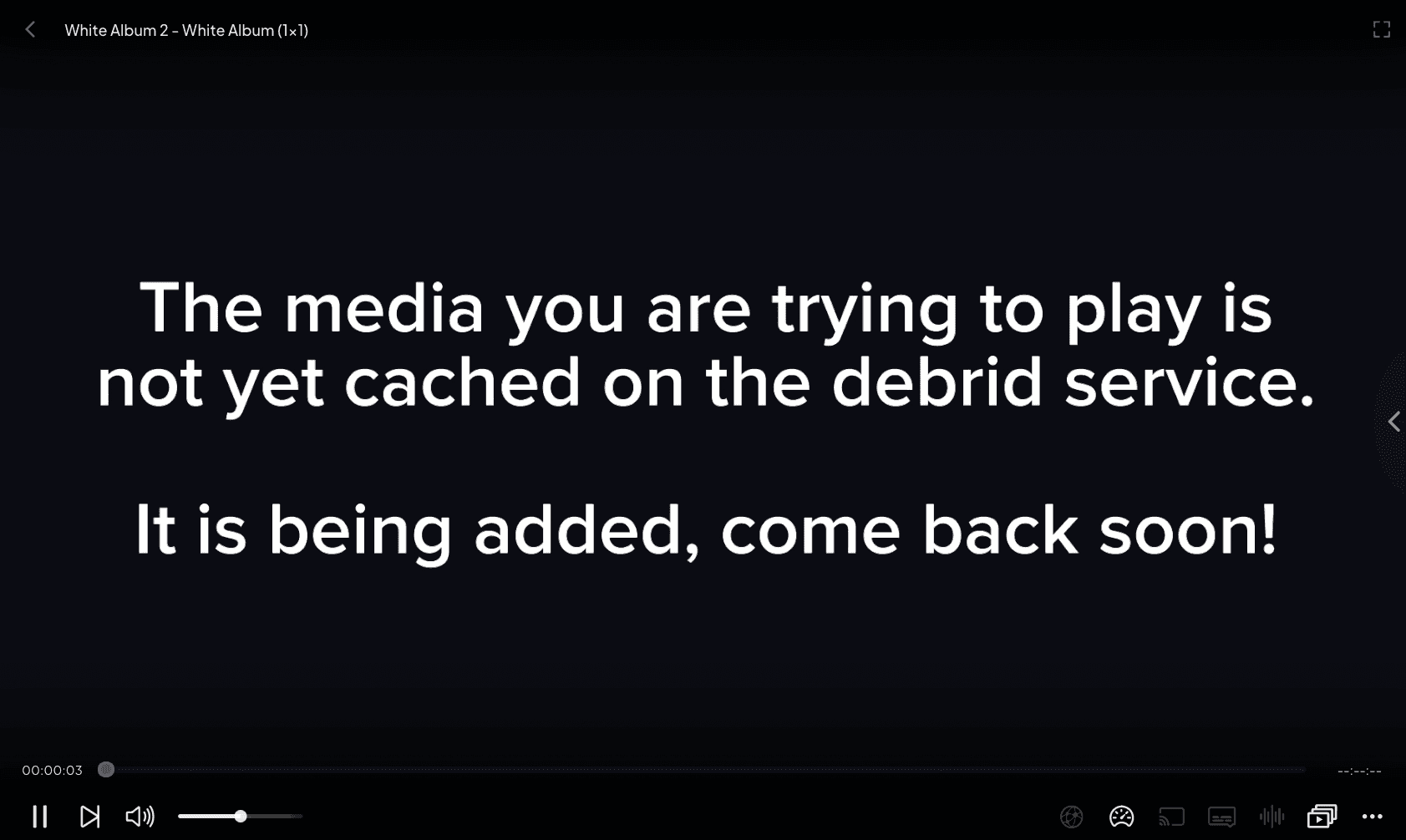
This means that the torrent actually needs to be retrieved before being able to stream. This can take from a few seconds to a few minutes, all depending on the size of the torrent and time it takes for the Stremio addon to retrieve it. You can try again, and if it still doesn't work, you can try a different quality or a different episode.
Some users combat this by using multiple debrid services like Torbox and Premiumize in tandem with RD. But in my case, I usually just resort to HTTP Streams from say AnimeStream if it's available instead. This does come at a lower quality, but it's still a viable option for those who either don't want to wait for the torrent to be cached, or don't want to pay for Real-Debrid at all.
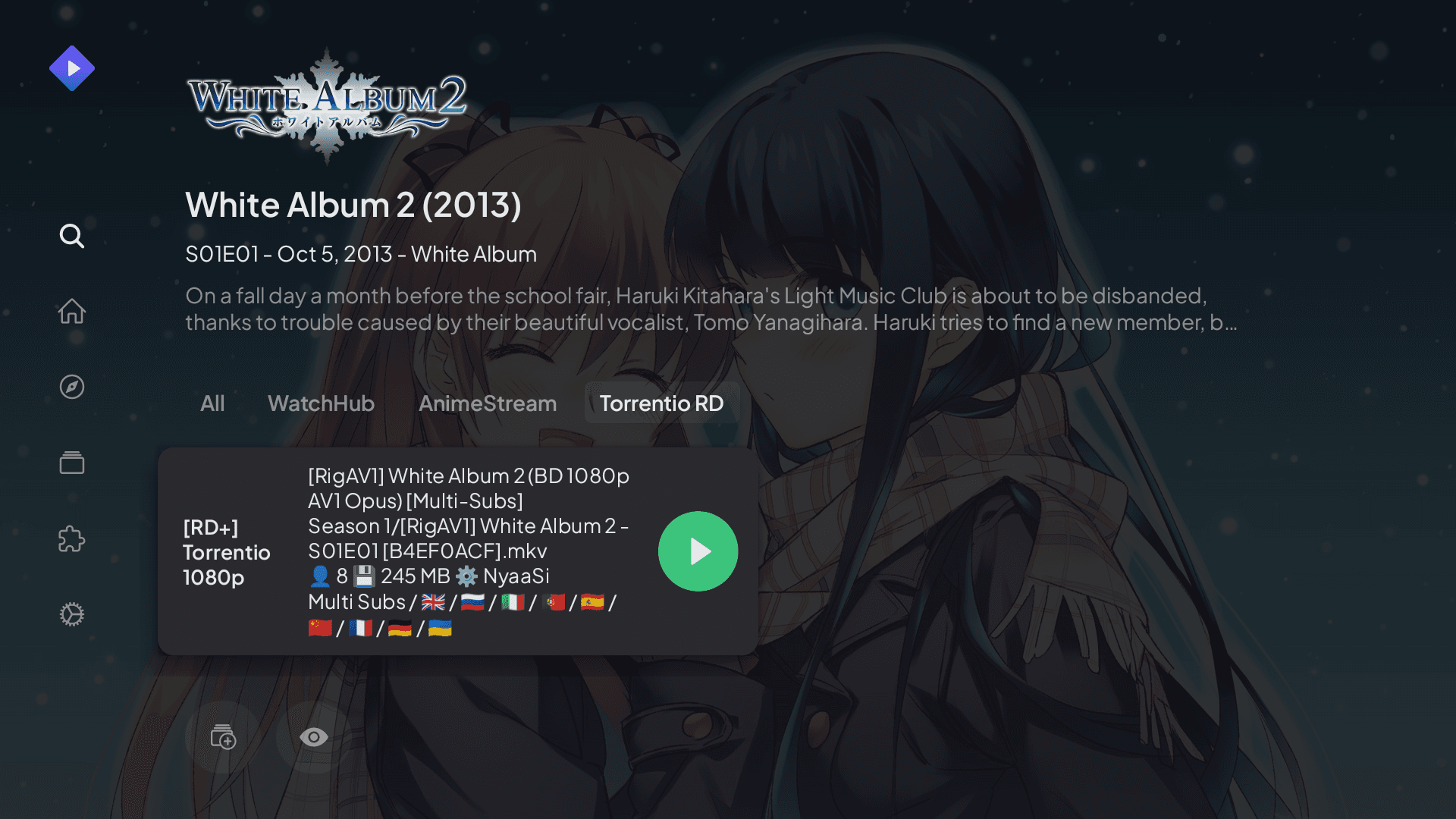
With Stremio, all you gotta do is select your preferred quality (I usually go for the highest one available), and enjoy! The stream will start playing within seconds, and then:
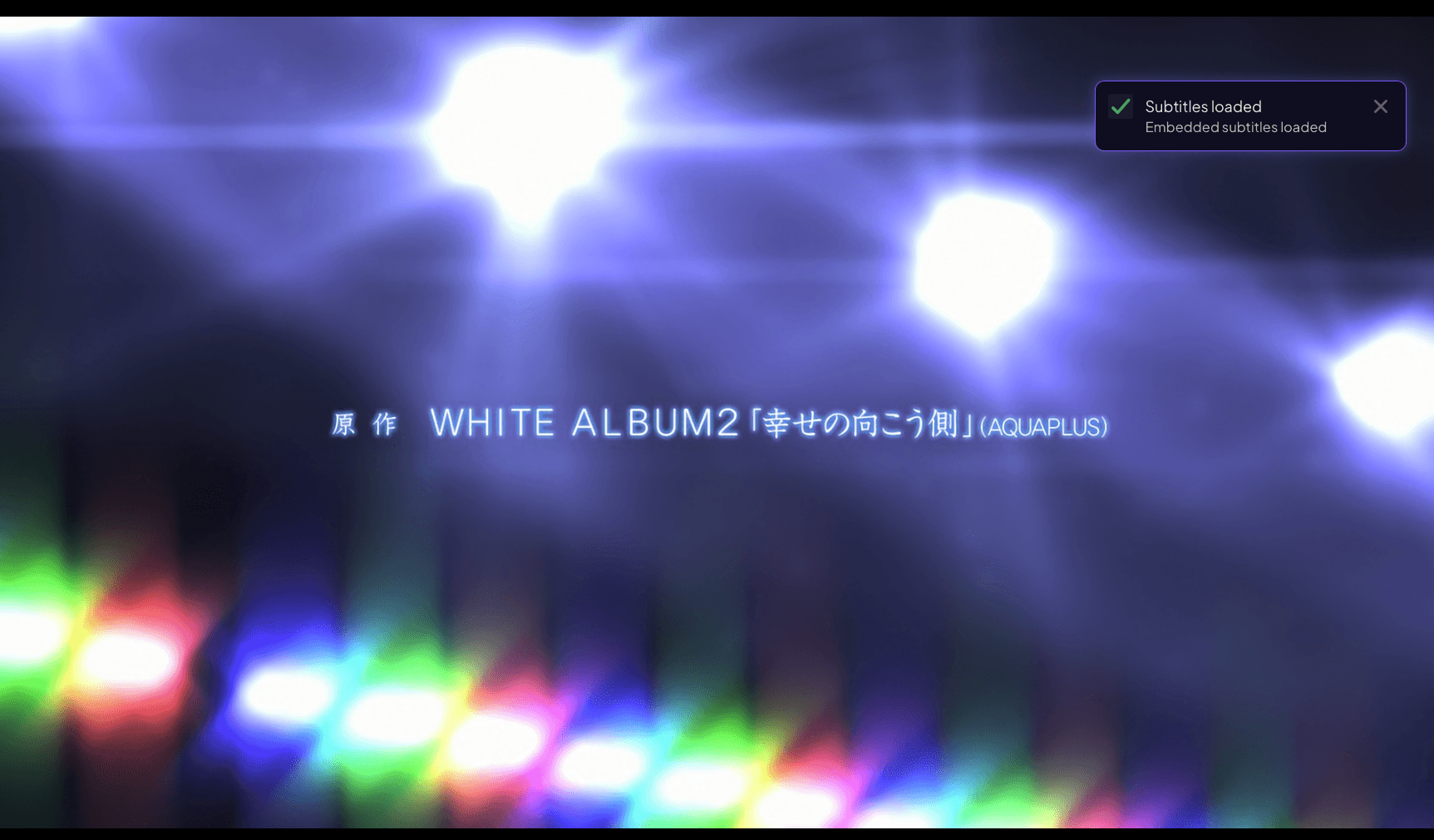
Would ya look at that. You can also see the subtitles were automatically appended thanks to the OpenSubtitles addon.
That's all for now!
You now have a fully functional, budget-friendly streaming setup that gives you access to pretty much any movie, TV show, or anime you could ever want without the increasing prices of the popular streaming services.
The rabbit hole here goes really deep, but I'm sure you can find a way to make it work for you.
There's stuff like Live TV, third-party app stores, Kodi + Jellyfin, and so much more. This is a whole other can of worms, but that's for another time. The total cost of all this is around $44 upfront, then ~$4/month for Real-Debrid. Compare that to Netflix ($15.49/month) + HBOMax ($15.99/month) + Disney+ ($13.99/month) + all the other services you'd need to get the same content. The math speaks for itself.
Free alternatives to Real Debrid
You don't actually need to pay for it. There's a bunch of other free addons that you can use to get the same benefits, however, the security and reliability of these free services are not guaranteed. If you'd like to go on that path, I'd suggest:
- WebStreamr
- AnimeStream
- USATV
- AnimeKitsu
- ...and so many more...
With Stremio, you can opt for individual addons, or addon-packs as I like to call them that consolidate multiple addons into one. One example of that is AIOStreams. Good luck!
My mom ended her cable subscription after I set this up for her. She's not technical at all, but she uses this stack every day. Open Stremio, TiviMate, search for what you want, and hit play. That's it.
Is this setup for everyone? Maybe not. If you want something even more hands-on and technical, check out my previous post on building your own Netflix with a HTPC. But for most people, especially those on a budget who just want to watch their shows without paying $100+ a month, this Real-Debrid + Stremio setup is the way to go.
If anyone wants me to write about IPTV, SmartTube, or any other related topics, be sure to message me on Discord - I'd love to hear your suggestions!
Until then, enjoy your newfound media freedom, pirates!! 